# Getting Started

What is BoloForms Signatures?

{% hint style="info" %}
​This is a usage guide for BoloForms Signature. In case you have additional questions/require support, feel free to [contact us](/contact-us)
{% endhint %}

## What is BoloForms Signatures?

BoloForms Signature is a user-friendly electronic signature software that simplifies document signing.&#x20;

It allows easy document upload, send signature requests to multiple recipients, and offers versatile signing options. Personalized emails and real-time dashboard updates enhance the experience. The platform ensures security with robust measures and maintains an audit trail for transparency.&#x20;

With version control and a simple interface, BoloForms Signature makes electronic signing effortless and legally binding.&#x20;

Additionally, BoloForms Signature also provides the option to create and use signature forms, making it a comprehensive solution for businesses seeking efficient and secure document management.

## Let's Get Started

<table data-card-size="large" data-view="cards"><thead><tr><th data-card-target data-type="content-ref"></th><th data-hidden></th><th data-hidden></th><th data-hidden></th></tr></thead><tbody><tr><td><a href="/pages/RM5zDZeAUfEu5W4FthzQ">/pages/RM5zDZeAUfEu5W4FthzQ</a></td><td></td><td></td><td></td></tr><tr><td><a href="/pages/llgpgfOaY1v40K21DzXY">/pages/llgpgfOaY1v40K21DzXY</a></td><td></td><td></td><td></td></tr><tr><td><a href="/pages/cIWAD0Md3o9gKdFPQFul">/pages/cIWAD0Md3o9gKdFPQFul</a></td><td></td><td></td><td></td></tr></tbody></table>


# Troubleshooting (Addon)

## Only the "Help" menu item does show up!

This issue can sometimes be caused by Google’s end due to low internet connectivity. You can try reloading the page, and all menu items will show up.

## The error message "drive.google.com refuses to connect" shows up within the sidebar.&#x20;

This also could happen if multiple users are logged in within the browser. Solution 1- Just log out with all users, except the one which should be used to work with the addon. Solution 2- Use a different browser or the incognito mode.

## The sidebar is completely blank.

The cause for this error message is that multiple users are logged in within the browser.

Solution 1- Just log out with all users, except the one which should be used to work with the addon.

Solution 2- Use a different browser or the incognito mode.


# Contact Us

How to Contact the Team at BoloForms Signature?

Don't hesitate to use BoloForms Signature to its full potential in case you need any help we're one call away.

You can contact us by email at <support@boloforms.com>

You can contact us via live chat from our [website](https://www.boloforms.com/signature/) as well as BoloForms [Dashboard](https://signature.boloforms.com/create).

Book a meet to discuss pricing or get a quick demo&#x20;

{% embed url="<https://cal.com/boloforms/signature>" %}


# FAQs

Get your Frequently Asked Questions answered here!!

<details>

<summary>What will happen to my data if I cancel my subscription?</summary>

You data will still be stored in our database even after your subscription cancellation. If you want to remove your data, please contact to us via <support@boloforms.com>.

</details>

<details>

<summary>I receive a permission error when I try to setup the Add-on</summary>

This is a known issue with Google permissions and it happens when you are logged in with more than one Google account. Try to sign out of all account except your main account. Alternatively, try Guest/Incognito mode.

</details>

<details>

<summary>Can I use the addon if my organisation does not use Google accounts?</summary>

Yes, but be aware that Form owner/adminstrator in particular still needs Google account. This is because the addon sends email on your Gmail behalf.

</details>

<details>

<summary>Does recipient need Google Account?</summary>

No. Recipients do not need Google account. They also do not need to have access to your Google Form or spreadsheet.

</details>

<details>

<summary>How many signatures can I take?</summary>

We provide 10 signatures to your for trying out BoloForms. You can purchase more signatures from our pricing page.

</details>

<details>

<summary>What will happen if I run out of signature quota?</summary>

When you run out of signature quota, you'll not be able to request signatures for your Pdfs or Forms until you upgrade your plan.

</details>


# Verify Downloaded PDF

To prove that someone signed your form or pdf upload the generated pdf to this [link](https://signature.boloforms.com/verify-pdf)

PDFs generated after **11th Sept 2023** can only be verified

{% embed url="<https://youtu.be/GP-xBzJtqs4>" %}

1. Click on Verify PDF option on the side menu on the left side of the screen.

<figure><img src="/files/b2nIGbiekRL1Tu72Soxz" alt="select verify pdf"><figcaption></figcaption></figure>

2. Click on “Upload File to verify” to upload the file that needs to be verified alternatively you can also drag and drop the pdf.

<figure><img src="/files/DwHPMSUPvNE1jzJXCUCU" alt="Upload File to verify"><figcaption></figcaption></figure>

3. Once that is done you can scroll down and see the specifications of the said PDF.

<figure><img src="/files/lTVl3z6OvH9UdiIXm1q9" alt=""><figcaption></figcaption></figure>


# HIPAA BAA Request

Please purchase HIPAA BAA directly from the [dashboard](https://signature.boloforms.com/billings).

After purchase you'd receive an email with a form in which you'd need to fill in the details and sign within 3 working days.

In case you didn't receive any email please contact our support via <support@boloforms.com> or live chat on website


# How to install the addon?

1\. Click on the More icon present in the top-right corner of the tab.

![Step 1 screenshot](https://images.tango.us/workflows/7de5c639-6afe-49a6-9ba3-f7e0a5645060/steps/e1a57482-7762-4fe7-bfd6-0a067b3b5055/c004f39b-f04e-4cdc-8041-aa182e19c8aa.png?crop=focalpoint\&fit=crop\&fp-x=0.9258\&fp-y=0.0433\&fp-z=2.6613\&w=1200\&border=2%2CF4F2F7\&border-radius=8%2C8%2C8%2C8\&border-radius-inner=8%2C8%2C8%2C8\&blend-align=bottom\&blend-mode=normal\&blend-x=0\&blend-w=1200\&blend64=aHR0cHM6Ly9pbWFnZXMudGFuZ28udXMvc3RhdGljL21hZGUtd2l0aC10YW5nby13YXRlcm1hcmstdjIucG5n\&mark-x=882\&mark-y=12\&m64=aHR0cHM6Ly9pbWFnZXMudGFuZ28udXMvc3RhdGljL2JsYW5rLnBuZz9tYXNrPWNvcm5lcnMmYm9yZGVyPTYlMkNGRjc0NDImdz0xNjEmaD0xNjEmZml0PWNyb3AmY29ybmVyLXJhZGl1cz0xMA%3D%3D)

#### 2. Click on Get add-ons.

![Step 2 screenshot](https://images.tango.us/workflows/7de5c639-6afe-49a6-9ba3-f7e0a5645060/steps/f013eb9c-40d4-4d3e-9c5a-8b79967e32e4/f842db31-2185-4aef-adfa-1f46deb986cd.png?crop=focalpoint\&fit=crop\&fp-x=0.8487\&fp-y=0.5465\&fp-z=2.6613\&w=1200\&border=2%2CF4F2F7\&border-radius=8%2C8%2C8%2C8\&border-radius-inner=8%2C8%2C8%2C8\&blend-align=bottom\&blend-mode=normal\&blend-x=0\&blend-w=1200\&blend64=aHR0cHM6Ly9pbWFnZXMudGFuZ28udXMvc3RhdGljL21hZGUtd2l0aC10YW5nby13YXRlcm1hcmstdjIucG5n\&mark-x=360\&mark-y=319\&m64=aHR0cHM6Ly9pbWFnZXMudGFuZ28udXMvc3RhdGljL2JsYW5rLnBuZz9tYXNrPWNvcm5lcnMmYm9yZGVyPTYlMkNGRjc0NDImdz03MTMmaD0xNjEmZml0PWNyb3AmY29ybmVyLXJhZGl1cz0xMA%3D%3D)

#### 3. Click on the search bar at the top and type "Signature in Google Forms by Bolo".

![Step 3 screenshot](https://images.tango.us/workflows/7de5c639-6afe-49a6-9ba3-f7e0a5645060/steps/bb50ed40-a1ed-4b07-985c-696aa59ec778/c078bf2a-e487-4370-b7d8-3b643dccb1fd.png?crop=focalpoint\&fit=crop\&fp-x=0.5998\&fp-y=0.1115\&fp-z=1.9278\&w=1200\&border=2%2CF4F2F7\&border-radius=8%2C8%2C8%2C8\&border-radius-inner=8%2C8%2C8%2C8\&blend-align=bottom\&blend-mode=normal\&blend-x=0\&blend-w=1200\&blend64=aHR0cHM6Ly9pbWFnZXMudGFuZ28udXMvc3RhdGljL21hZGUtd2l0aC10YW5nby13YXRlcm1hcmstdjIucG5n\&mark-x=326\&mark-y=138\&m64=aHR0cHM6Ly9pbWFnZXMudGFuZ28udXMvc3RhdGljL2JsYW5rLnBuZz9tYXNrPWNvcm5lcnMmYm9yZGVyPTYlMkNGRjc0NDImdz01NDgmaD02NyZmaXQ9Y3JvcCZjb3JuZXItcmFkaXVzPTEw)

#### 4. Click on [Signature in Google Forms by Bolo | Sign PDF docs](https://workspace.google.com/u/0/marketplace/app/signature_in_google_forms_by_bolo_sign_p/980217179187) from the search results.

![Step 4 screenshot](https://images.tango.us/workflows/7de5c639-6afe-49a6-9ba3-f7e0a5645060/steps/95ebb0b0-81dd-47c6-abde-80125fc76dcb/1fb0697b-5f11-4ba3-a92e-4c0c999d0210.png?crop=focalpoint\&fit=crop\&fp-x=0.2118\&fp-y=0.5687\&fp-z=1.5904\&w=1200\&border=2%2CF4F2F7\&border-radius=8%2C8%2C8%2C8\&border-radius-inner=8%2C8%2C8%2C8\&blend-align=bottom\&blend-mode=normal\&blend-x=0\&blend-w=1200\&blend64=aHR0cHM6Ly9pbWFnZXMudGFuZ28udXMvc3RhdGljL21hZGUtd2l0aC10YW5nby13YXRlcm1hcmstdjIucG5n\&mark-x=227\&mark-y=148\&m64=aHR0cHM6Ly9pbWFnZXMudGFuZ28udXMvc3RhdGljL2JsYW5rLnBuZz9tYXNrPWNvcm5lcnMmYm9yZGVyPTYlMkNGRjc0NDImdz0zNTUmaD01MDImZml0PWNyb3AmY29ybmVyLXJhZGl1cz0xMA%3D%3D)

#### 5. Click on Install.

![Step 5 screenshot](https://images.tango.us/workflows/7de5c639-6afe-49a6-9ba3-f7e0a5645060/steps/cbbfb4c0-ecb0-4c0b-9af5-2822d69bde28/f80a56e7-a9f5-477e-afb4-ef7856ab9682.png?crop=focalpoint\&fit=crop\&fp-x=0.7468\&fp-y=0.3003\&fp-z=2.7815\&w=1200\&border=2%2CF4F2F7\&border-radius=8%2C8%2C8%2C8\&border-radius-inner=8%2C8%2C8%2C8\&blend-align=bottom\&blend-mode=normal\&blend-x=0\&blend-w=1200\&blend64=aHR0cHM6Ly9pbWFnZXMudGFuZ28udXMvc3RhdGljL21hZGUtd2l0aC10YW5nby13YXRlcm1hcmstdjIucG5n\&mark-x=354\&mark-y=333\&m64=aHR0cHM6Ly9pbWFnZXMudGFuZ28udXMvc3RhdGljL2JsYW5rLnBuZz9tYXNrPWNvcm5lcnMmYm9yZGVyPTYlMkNGRjc0NDImdz00OTMmaD0xMzImZml0PWNyb3AmY29ybmVyLXJhZGl1cz0xMA%3D%3D)

#### 6. Click on CONTINUE

![Step 6 screenshot](https://images.tango.us/workflows/7de5c639-6afe-49a6-9ba3-f7e0a5645060/steps/108fc3e6-45b8-4ade-8dca-c3759090273e/b652a65a-b7b7-4b8f-a961-127278515b79.png?crop=focalpoint\&fit=crop\&fp-x=0.6135\&fp-y=0.6585\&fp-z=2.6120\&w=1200\&border=2%2CF4F2F7\&border-radius=8%2C8%2C8%2C8\&border-radius-inner=8%2C8%2C8%2C8\&blend-align=bottom\&blend-mode=normal\&blend-x=0\&blend-w=1200\&blend64=aHR0cHM6Ly9pbWFnZXMudGFuZ28udXMvc3RhdGljL21hZGUtd2l0aC10YW5nby13YXRlcm1hcmstdjIucG5n\&mark-x=470\&mark-y=337\&m64=aHR0cHM6Ly9pbWFnZXMudGFuZ28udXMvc3RhdGljL2JsYW5rLnBuZz9tYXNrPWNvcm5lcnMmYm9yZGVyPTYlMkNGRjc0NDImdz0yNjAmaD0xMjQmZml0PWNyb3AmY29ybmVyLXJhZGl1cz0xMA%3D%3D)

#### 7. Click on the Google account you want to link the installation to.

![Step 7 screenshot](https://images.tango.us/workflows/7de5c639-6afe-49a6-9ba3-f7e0a5645060/steps/58d57397-bf74-4c98-9443-c9109d8c872a/494488c2-f51a-4d8e-a03a-aaffaddf9b8b.png?crop=focalpoint\&fit=crop\&fp-x=0.5000\&fp-y=0.4909\&fp-z=1.1799\&w=1200\&border=2%2CF4F2F7\&border-radius=8%2C8%2C8%2C8\&border-radius-inner=8%2C8%2C8%2C8\&blend-align=bottom\&blend-mode=normal\&blend-x=0\&blend-w=1200\&blend64=aHR0cHM6Ly9pbWFnZXMudGFuZ28udXMvc3RhdGljL21hZGUtd2l0aC10YW5nby13YXRlcm1hcmstdjIucG5n\&mark-x=108\&mark-y=607\&m64=aHR0cHM6Ly9pbWFnZXMudGFuZ28udXMvc3RhdGljL2JsYW5rLnBuZz9tYXNrPWNvcm5lcnMmYm9yZGVyPTYlMkNGRjc0NDImdz05ODQmaD0xNDcmZml0PWNyb3AmY29ybmVyLXJhZGl1cz0xMA%3D%3D)

#### 8. Click on Allow.

![Step 8 screenshot](https://images.tango.us/workflows/7de5c639-6afe-49a6-9ba3-f7e0a5645060/steps/43d85625-b28a-4025-afb8-db0de9ff1f37/d1852fe3-b9f8-499a-acc2-240780750dd4.png?crop=focalpoint\&fit=crop\&fp-x=0.6305\&fp-y=0.8532\&fp-z=1.9431\&w=1200\&border=2%2CF4F2F7\&border-radius=8%2C8%2C8%2C8\&border-radius-inner=8%2C8%2C8%2C8\&blend-align=bottom\&blend-mode=normal\&blend-x=0\&blend-w=1200\&blend64=aHR0cHM6Ly9pbWFnZXMudGFuZ28udXMvc3RhdGljL21hZGUtd2l0aC10YW5nby13YXRlcm1hcmstdjIucG5n\&mark-x=262\&mark-y=895\&m64=aHR0cHM6Ly9pbWFnZXMudGFuZ28udXMvc3RhdGljL2JsYW5rLnBuZz9tYXNrPWNvcm5lcnMmYm9yZGVyPTYlMkNGRjc0NDImdz02NzcmaD0xNTYmZml0PWNyb3AmY29ybmVyLXJhZGl1cz0xMA%3D%3D)

#### 9. Click on DONE

![Step 9 screenshot](https://images.tango.us/workflows/7de5c639-6afe-49a6-9ba3-f7e0a5645060/steps/874c9827-d10f-41a6-ae3e-67b2c423d9f6/88f435c8-fd09-4497-a721-a87b41633449.png?crop=focalpoint\&fit=crop\&fp-x=0.6412\&fp-y=0.8079\&fp-z=2.5876\&w=1200\&border=2%2CF4F2F7\&border-radius=8%2C8%2C8%2C8\&border-radius-inner=8%2C8%2C8%2C8\&blend-align=bottom\&blend-mode=normal\&blend-x=0\&blend-w=1200\&blend64=aHR0cHM6Ly9pbWFnZXMudGFuZ28udXMvc3RhdGljL21hZGUtd2l0aC10YW5nby13YXRlcm1hcmstdjIucG5n\&mark-x=466\&mark-y=340\&m64=aHR0cHM6Ly9pbWFnZXMudGFuZ28udXMvc3RhdGljL2JsYW5rLnBuZz9tYXNrPWNvcm5lcnMmYm9yZGVyPTYlMkNGRjc0NDImdz0yNjgmaD0xMjMmZml0PWNyb3AmY29ybmVyLXJhZGl1cz0xMA%3D%3D)


# How to use addon?

Learn how to use BoloForms Signature addon in 3 mins

{% embed url="<https://youtu.be/HRAOMIJA4og>" %}


# How to send out signature request via E-mail

**1. Click on Add-ons icon on your form.**

![](https://images.tango.us/workflows/bf424758-091c-4cc3-ae08-b0a3b0f7aebd/steps/fbb55df9-1529-4da2-9a7d-e1f0070692e2/e26935a5-df2a-4fa8-9698-cea7feb4f289.png?crop=focalpoint\&fit=crop\&fp-x=0.6189\&fp-y=0.0433\&fp-z=2.6613\&w=1200\&border=2%2CF4F2F7\&border-radius=8%2C8%2C8%2C8\&border-radius-inner=8%2C8%2C8%2C8\&blend-align=bottom\&blend-mode=normal\&blend-x=0\&blend-w=1200\&blend64=aHR0cHM6Ly9pbWFnZXMudGFuZ28udXMvc3RhdGljL21hZGUtd2l0aC10YW5nby13YXRlcm1hcmstdjIucG5n\&mark-x=519\&mark-y=12\&m64=aHR0cHM6Ly9pbWFnZXMudGFuZ28udXMvc3RhdGljL2JsYW5rLnBuZz9tYXNrPWNvcm5lcnMmYm9yZGVyPTYlMkNGRjc0NDImdz0xNjEmaD0xNjEmZml0PWNyb3AmY29ybmVyLXJhZGl1cz0xMA%3D%3D)

#### 2. Click on Signature in Google Forms by Bolo | Sign PDF docs

![](https://images.tango.us/workflows/bf424758-091c-4cc3-ae08-b0a3b0f7aebd/steps/d326b09f-f761-4c67-882a-f0ed329e8c19/491cbce2-9a1e-4396-868e-59902b3059f0.png?crop=focalpoint\&fit=crop\&fp-x=0.7702\&fp-y=0.2468\&fp-z=2.4610\&w=1200\&border=2%2CF4F2F7\&border-radius=8%2C8%2C8%2C8\&border-radius-inner=8%2C8%2C8%2C8\&blend-align=bottom\&blend-mode=normal\&blend-x=0\&blend-w=1200\&blend64=aHR0cHM6Ly9pbWFnZXMudGFuZ28udXMvc3RhdGljL21hZGUtd2l0aC10YW5nby13YXRlcm1hcmstdjIucG5n\&mark-x=79\&mark-y=325\&m64=aHR0cHM6Ly9pbWFnZXMudGFuZ28udXMvc3RhdGljL2JsYW5rLnBuZz9tYXNrPWNvcm5lcnMmYm9yZGVyPTYlMkNGRjc0NDImdz0xMDQzJmg9MTQ5JmZpdD1jcm9wJmNvcm5lci1yYWRpdXM9MTA%3D)

#### 3. Click on Open

![](https://images.tango.us/workflows/bf424758-091c-4cc3-ae08-b0a3b0f7aebd/steps/c29de3f9-2b8d-4500-9196-0c089b4daef7/49ecae72-2ad0-48e7-b5fa-eb26a151816e.png?crop=focalpoint\&fit=crop\&fp-x=0.3883\&fp-y=0.2008\&fp-z=2.5876\&w=1200\&border=2%2CF4F2F7\&border-radius=8%2C8%2C8%2C8\&border-radius-inner=8%2C8%2C8%2C8\&blend-align=bottom\&blend-mode=normal\&blend-x=0\&blend-w=1200\&blend64=aHR0cHM6Ly9pbWFnZXMudGFuZ28udXMvc3RhdGljL21hZGUtd2l0aC10YW5nby13YXRlcm1hcmstdjIucG5n\&mark-x=466\&mark-y=338\&m64=aHR0cHM6Ly9pbWFnZXMudGFuZ28udXMvc3RhdGljL2JsYW5rLnBuZz9tYXNrPWNvcm5lcnMmYm9yZGVyPTYlMkNGRjc0NDImdz0yNjgmaD0xMjMmZml0PWNyb3AmY29ybmVyLXJhZGl1cz0xMA%3D%3D)

#### 4. After the addon finishes loading, click on Sync Form

![](https://images.tango.us/workflows/bf424758-091c-4cc3-ae08-b0a3b0f7aebd/steps/3b6a0f89-4531-4cef-b102-cd43a85c5a94/7899c292-39bf-42ca-854f-0cd5401e1470.png?crop=focalpoint\&fit=crop\&fp-x=0.8469\&fp-y=0.7538\&fp-z=3.5139\&w=1200\&border=2%2CF4F2F7\&border-radius=8%2C8%2C8%2C8\&border-radius-inner=8%2C8%2C8%2C8\&blend-align=bottom\&blend-mode=normal\&blend-x=0\&blend-w=1200\&blend64=aHR0cHM6Ly9pbWFnZXMudGFuZ28udXMvc3RhdGljL21hZGUtd2l0aC10YW5nby13YXRlcm1hcmstdjIucG5n\&mark-x=46\&mark-y=319\&m64=aHR0cHM6Ly9pbWFnZXMudGFuZ28udXMvc3RhdGljL2JsYW5rLnBuZz9tYXNrPWNvcm5lcnMmYm9yZGVyPTYlMkNGRjc0NDImdz0xMTA5Jmg9MTYxJmZpdD1jcm9wJmNvcm5lci1yYWRpdXM9MTA%3D)

#### 5. Click on Email

![](https://images.tango.us/workflows/bf424758-091c-4cc3-ae08-b0a3b0f7aebd/steps/d6604758-83cb-4c08-8c58-930dcf64a9e1/703056be-a259-4746-89cd-e7aa55815379.png?crop=focalpoint\&fit=crop\&fp-x=0.8527\&fp-y=0.4578\&fp-z=2.9130\&w=1200\&border=2%2CF4F2F7\&border-radius=8%2C8%2C8%2C8\&border-radius-inner=8%2C8%2C8%2C8\&blend-align=bottom\&blend-mode=normal\&blend-x=0\&blend-w=1200\&blend64=aHR0cHM6Ly9pbWFnZXMudGFuZ28udXMvc3RhdGljL21hZGUtd2l0aC10YW5nby13YXRlcm1hcmstdjIucG5n\&mark-x=611\&mark-y=349\&m64=aHR0cHM6Ly9pbWFnZXMudGFuZ28udXMvc3RhdGljL2JsYW5rLnBuZz9tYXNrPWNvcm5lcnMmYm9yZGVyPTYlMkNGRjc0NDImdz0xNDkmaD0xMDEmZml0PWNyb3AmY29ybmVyLXJhZGl1cz0xMA%3D%3D)

#### 6. Type in the name of the signer along with their email address in their respective text fields.

![](https://images.tango.us/workflows/bf424758-091c-4cc3-ae08-b0a3b0f7aebd/steps/cf9af6e6-2035-45a0-ae22-0ebb28d43c33/9d7a77cc-be15-456a-a040-7c8e1a655b57.png?crop=focalpoint\&fit=crop\&fp-x=0.7821\&fp-y=0.6780\&fp-z=2.8519\&w=1200\&border=2%2CF4F2F7\&border-radius=8%2C8%2C8%2C8\&border-radius-inner=8%2C8%2C8%2C8\&blend-align=bottom\&blend-mode=normal\&blend-x=0\&blend-w=1200\&blend64=aHR0cHM6Ly9pbWFnZXMudGFuZ28udXMvc3RhdGljL21hZGUtd2l0aC10YW5nby13YXRlcm1hcmstdjIucG5n\&mark-x=414\&mark-y=334\&m64=aHR0cHM6Ly9pbWFnZXMudGFuZ28udXMvc3RhdGljL2JsYW5rLnBuZz9tYXNrPWNvcm5lcnMmYm9yZGVyPTYlMkNGRjc0NDImdz0zNzImaD0xMzEmZml0PWNyb3AmY29ybmVyLXJhZGl1cz0xMA%3D%3D)

#### 7. Scroll down and add email details like email subject and message for the signers.

![](https://images.tango.us/workflows/bf424758-091c-4cc3-ae08-b0a3b0f7aebd/steps/0ab8e8af-d5d5-43d2-9499-d27e59176737/bd0c96f5-36fd-4e17-b4c0-44f71830aece.png?crop=focalpoint\&fit=crop\&fp-x=0.8469\&fp-y=0.7348\&fp-z=2.4973\&w=1200\&border=2%2CF4F2F7\&border-radius=8%2C8%2C8%2C8\&border-radius-inner=8%2C8%2C8%2C8\&blend-align=bottom\&blend-mode=normal\&blend-x=0\&blend-w=1200\&blend64=aHR0cHM6Ly9pbWFnZXMudGFuZ28udXMvc3RhdGljL21hZGUtd2l0aC10YW5nby13YXRlcm1hcmstdjIucG5n\&mark-x=347\&mark-y=130\&m64=aHR0cHM6Ly9pbWFnZXMudGFuZ28udXMvc3RhdGljL2JsYW5rLnBuZz9tYXNrPWNvcm5lcnMmYm9yZGVyPTYlMkNGRjc0NDImdz03ODgmaD01NDAmZml0PWNyb3AmY29ybmVyLXJhZGl1cz0xMA%3D%3D)

#### 8. Click on Send

![](https://images.tango.us/workflows/bf424758-091c-4cc3-ae08-b0a3b0f7aebd/steps/35ef8a78-1615-447c-9cb7-a040f1b773ec/52011ca8-2304-4cc6-b373-a8ada7387fc2.png?crop=focalpoint\&fit=crop\&fp-x=0.8469\&fp-y=0.9675\&fp-z=3.4272\&w=1200\&border=2%2CF4F2F7\&border-radius=8%2C8%2C8%2C8\&border-radius-inner=8%2C8%2C8%2C8\&blend-align=bottom\&blend-mode=normal\&blend-x=0\&blend-w=1200\&blend64=aHR0cHM6Ly9pbWFnZXMudGFuZ28udXMvc3RhdGljL21hZGUtd2l0aC10YW5nby13YXRlcm1hcmstdjIucG5n\&mark-x=30\&mark-y=606\&m64=aHR0cHM6Ly9pbWFnZXMudGFuZ28udXMvc3RhdGljL2JsYW5rLnBuZz9tYXNrPWNvcm5lcnMmYm9yZGVyPTYlMkNGRjc0NDImdz0xMTQxJmg9MjA3JmZpdD1jcm9wJmNvcm5lci1yYWRpdXM9MTA%3D)


# How to download signed forms

**1. Open your desired form and click on the Add-ons icon.**

![Step 1 screenshot](https://images.tango.us/workflows/c53374ed-82dd-4fd0-88f9-195bb4435910/steps/40ef0748-402b-46fd-af46-8ffaffadaad5/1fff345b-5d87-4835-8d35-2a4db3026c38.png?crop=focalpoint\&fit=crop\&fp-x=0.6189\&fp-y=0.0433\&fp-z=2.6613\&w=1200\&border=2%2CF4F2F7\&border-radius=8%2C8%2C8%2C8\&border-radius-inner=8%2C8%2C8%2C8\&blend-align=bottom\&blend-mode=normal\&blend-x=0\&blend-w=1200\&blend64=aHR0cHM6Ly9pbWFnZXMudGFuZ28udXMvc3RhdGljL21hZGUtd2l0aC10YW5nby13YXRlcm1hcmstdjIucG5n\&mark-x=519\&mark-y=12\&m64=aHR0cHM6Ly9pbWFnZXMudGFuZ28udXMvc3RhdGljL2JsYW5rLnBuZz9tYXNrPWNvcm5lcnMmYm9yZGVyPTYlMkNGRjc0NDImdz0xNjEmaD0xNjEmZml0PWNyb3AmY29ybmVyLXJhZGl1cz0xMA%3D%3D)

#### 2. Click on Signature in Google Forms by Bolo and Sign PDF docs from the pop-up list.

![Step 2 screenshot](https://images.tango.us/workflows/c53374ed-82dd-4fd0-88f9-195bb4435910/steps/81040845-30a4-4a07-93cb-20c7ef1e7a95/4a51bc15-5d5f-48b9-ae76-c465a386f7f7.png?crop=focalpoint\&fit=crop\&fp-x=0.7702\&fp-y=0.2468\&fp-z=2.4610\&w=1200\&border=2%2CF4F2F7\&border-radius=8%2C8%2C8%2C8\&border-radius-inner=8%2C8%2C8%2C8\&blend-align=bottom\&blend-mode=normal\&blend-x=0\&blend-w=1200\&blend64=aHR0cHM6Ly9pbWFnZXMudGFuZ28udXMvc3RhdGljL21hZGUtd2l0aC10YW5nby13YXRlcm1hcmstdjIucG5n\&mark-x=79\&mark-y=325\&m64=aHR0cHM6Ly9pbWFnZXMudGFuZ28udXMvc3RhdGljL2JsYW5rLnBuZz9tYXNrPWNvcm5lcnMmYm9yZGVyPTYlMkNGRjc0NDImdz0xMDQzJmg9MTQ5JmZpdD1jcm9wJmNvcm5lci1yYWRpdXM9MTA%3D)

#### 3. Click on Open.

![Step 3 screenshot](https://images.tango.us/workflows/c53374ed-82dd-4fd0-88f9-195bb4435910/steps/4da28fc3-bc2b-4e6f-8816-02bdfbdfc828/ec9507fe-4e6e-4b61-bfba-7fdacf82d712.png?crop=focalpoint\&fit=crop\&fp-x=0.3883\&fp-y=0.2008\&fp-z=2.5876\&w=1200\&border=2%2CF4F2F7\&border-radius=8%2C8%2C8%2C8\&border-radius-inner=8%2C8%2C8%2C8\&blend-align=bottom\&blend-mode=normal\&blend-x=0\&blend-w=1200\&blend64=aHR0cHM6Ly9pbWFnZXMudGFuZ28udXMvc3RhdGljL21hZGUtd2l0aC10YW5nby13YXRlcm1hcmstdjIucG5n\&mark-x=466\&mark-y=338\&m64=aHR0cHM6Ly9pbWFnZXMudGFuZ28udXMvc3RhdGljL2JsYW5rLnBuZz9tYXNrPWNvcm5lcnMmYm9yZGVyPTYlMkNGRjc0NDImdz0yNjgmaD0xMjMmZml0PWNyb3AmY29ybmVyLXJhZGl1cz0xMA%3D%3D)

#### 4. Click on See Responses in the home tab.

![Step 4 screenshot](https://images.tango.us/workflows/c53374ed-82dd-4fd0-88f9-195bb4435910/steps/6e4f3286-f5cf-4092-b3e6-2536423591eb/e60bab7b-1e15-49d3-92b0-b33ad21e9bae.png?crop=focalpoint\&fit=crop\&fp-x=0.8469\&fp-y=0.7202\&fp-z=3.2421\&w=1200\&border=2%2CF4F2F7\&border-radius=8%2C8%2C8%2C8\&border-radius-inner=8%2C8%2C8%2C8\&blend-align=bottom\&blend-mode=normal\&blend-x=0\&blend-w=1200\&blend64=aHR0cHM6Ly9pbWFnZXMudGFuZ28udXMvc3RhdGljL21hZGUtd2l0aC10YW5nby13YXRlcm1hcmstdjIucG5n\&mark-x=93\&mark-y=325\&m64=aHR0cHM6Ly9pbWFnZXMudGFuZ28udXMvc3RhdGljL2JsYW5rLnBuZz9tYXNrPWNvcm5lcnMmYm9yZGVyPTYlMkNGRjc0NDImdz0xMDIzJmg9MTQ5JmZpdD1jcm9wJmNvcm5lci1yYWRpdXM9MTA%3D)

#### 5. Click on Download PDF in Dashboard in the pop-up that appears. It would open the BoloForms Signature dashboard in a new tab.

![Step 5 screenshot](https://images.tango.us/workflows/c53374ed-82dd-4fd0-88f9-195bb4435910/steps/a373a2ab-c4bc-401d-83fa-b4b63f17a847/a1c67369-398c-4df1-8adc-1871973ace67.png?crop=focalpoint\&fit=crop\&fp-x=0.5000\&fp-y=0.8377\&fp-z=1.1069\&w=1200\&border=2%2CF4F2F7\&border-radius=8%2C8%2C8%2C8\&border-radius-inner=8%2C8%2C8%2C8\&blend-align=bottom\&blend-mode=normal\&blend-x=0\&blend-w=1200\&blend64=aHR0cHM6Ly9pbWFnZXMudGFuZ28udXMvc3RhdGljL21hZGUtd2l0aC10YW5nby13YXRlcm1hcmstdjIucG5n\&mark-x=64\&mark-y=627\&m64=aHR0cHM6Ly9pbWFnZXMudGFuZ28udXMvc3RhdGljL2JsYW5rLnBuZz9tYXNrPWNvcm5lcnMmYm9yZGVyPTYlMkNGRjc0NDImdz0xMDcyJmg9NTcmZml0PWNyb3AmY29ybmVyLXJhZGl1cz0xMA%3D%3D)

#### 6. In the Signature dashboard, click on Download for the desired form response.

![Step 6 screenshot](https://images.tango.us/workflows/c53374ed-82dd-4fd0-88f9-195bb4435910/steps/f8faba75-2ef9-4715-9053-35c1ea0c5ca5/6ca4a2e3-0ec4-492e-89d4-d414a1da2c7a.png?crop=focalpoint\&fit=crop\&fp-x=0.2277\&fp-y=0.3523\&fp-z=2.5127\&w=1200\&border=2%2CF4F2F7\&border-radius=8%2C8%2C8%2C8\&border-radius-inner=8%2C8%2C8%2C8\&blend-align=bottom\&blend-mode=normal\&blend-x=0\&blend-w=1200\&blend64=aHR0cHM6Ly9pbWFnZXMudGFuZ28udXMvc3RhdGljL21hZGUtd2l0aC10YW5nby13YXRlcm1hcmstdjIucG5n\&mark-x=452\&mark-y=353\&m64=aHR0cHM6Ly9pbWFnZXMudGFuZ28udXMvc3RhdGljL2JsYW5rLnBuZz9tYXNrPWNvcm5lcnMmYm9yZGVyPTYlMkNGRjc0NDImdz0yOTUmaD05MyZmaXQ9Y3JvcCZjb3JuZXItcmFkaXVzPTEw)


# Multiple Signatures in BoloForms Signature Addon

{% embed url="<https://youtu.be/BM7smer3xPE>" %}


# Send Bulk Signature Requests

{% embed url="<https://www.youtube.com/embed/SQCfm49nvpY>" %}


# How to purchase Signatures for Freelancer Plan?

See how to buy Signatures Addon Quotas for Freelancer Plan

{% embed url="<https://youtu.be/3VtKPxokIwo>" %}


# How to connect signatures with Google Sheets

{% embed url="<https://youtu.be/0QZ05RXYexU>" %}


# Single PDF Signature

Articles in this Section

<table data-card-size="large" data-view="cards"><thead><tr><th data-card-target data-type="content-ref"></th><th data-hidden></th><th data-hidden></th><th data-hidden></th></tr></thead><tbody><tr><td><a href="/pages/oyB92mWmdIpoBPIG3Dp4">/pages/oyB92mWmdIpoBPIG3Dp4</a></td><td></td><td></td><td></td></tr><tr><td><a href="/pages/6gkxVF7WWpnBelaPz0cO">/pages/6gkxVF7WWpnBelaPz0cO</a></td><td></td><td></td><td></td></tr><tr><td><a href="/pages/tFlE9YpSQuY3xLHnkx83">/pages/tFlE9YpSQuY3xLHnkx83</a></td><td></td><td></td><td></td></tr><tr><td><a href="/pages/MmjaDe9ikzVETSq3jOHb">/pages/MmjaDe9ikzVETSq3jOHb</a></td><td></td><td></td><td></td></tr><tr><td><a href="/pages/5fg74zbDixMUKAqJiGgX">/pages/5fg74zbDixMUKAqJiGgX</a></td><td></td><td></td><td></td></tr></tbody></table>


# Send Signature Request

{% embed url="<https://youtu.be/p1oNvDa4k14>" %}

#### Go to [BoloForms Signature](https://signature.boloforms.com/create)

1. Click on the PDF option on the dashboard to get your PDF document signed.

<figure><img src="/files/rT1FhT07Fxy64uWPW3ue" alt="select pdf"><figcaption></figcaption></figure>

2. Select “Click to upload” to upload the PDF that you wish to be signed alternatively, you can use the “Drag and Drop” option to do so.

<figure><img src="/files/dTsQ6J4lNgBBocKGhqf6" alt="add pdf"><figcaption></figcaption></figure>

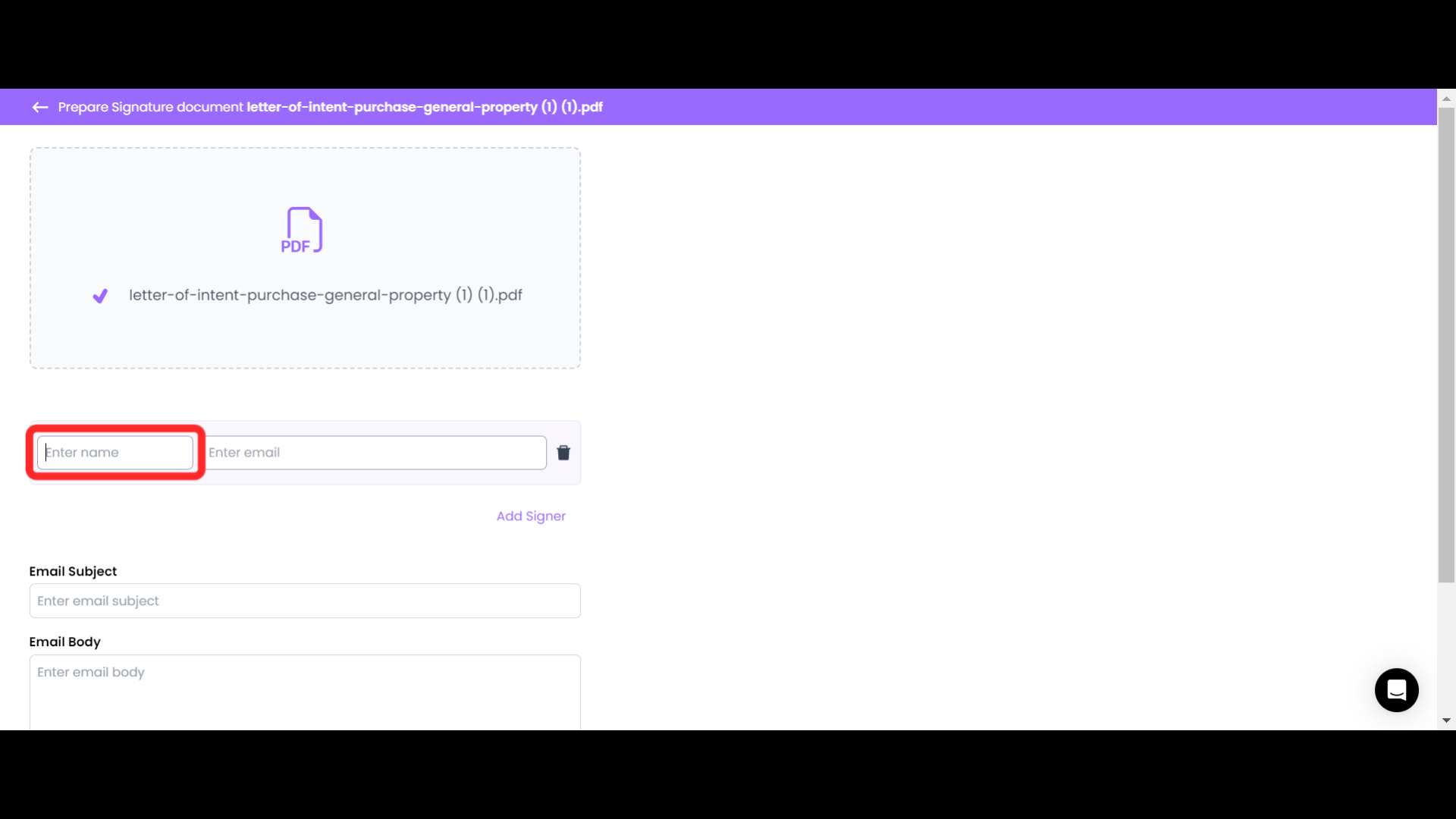
3. Enter the name and email ID of the recipient(signer).

<figure><img src="/files/D48jIaRN54nN0hK0Jf5b" alt="add name and email id of the signer"><figcaption></figcaption></figure>

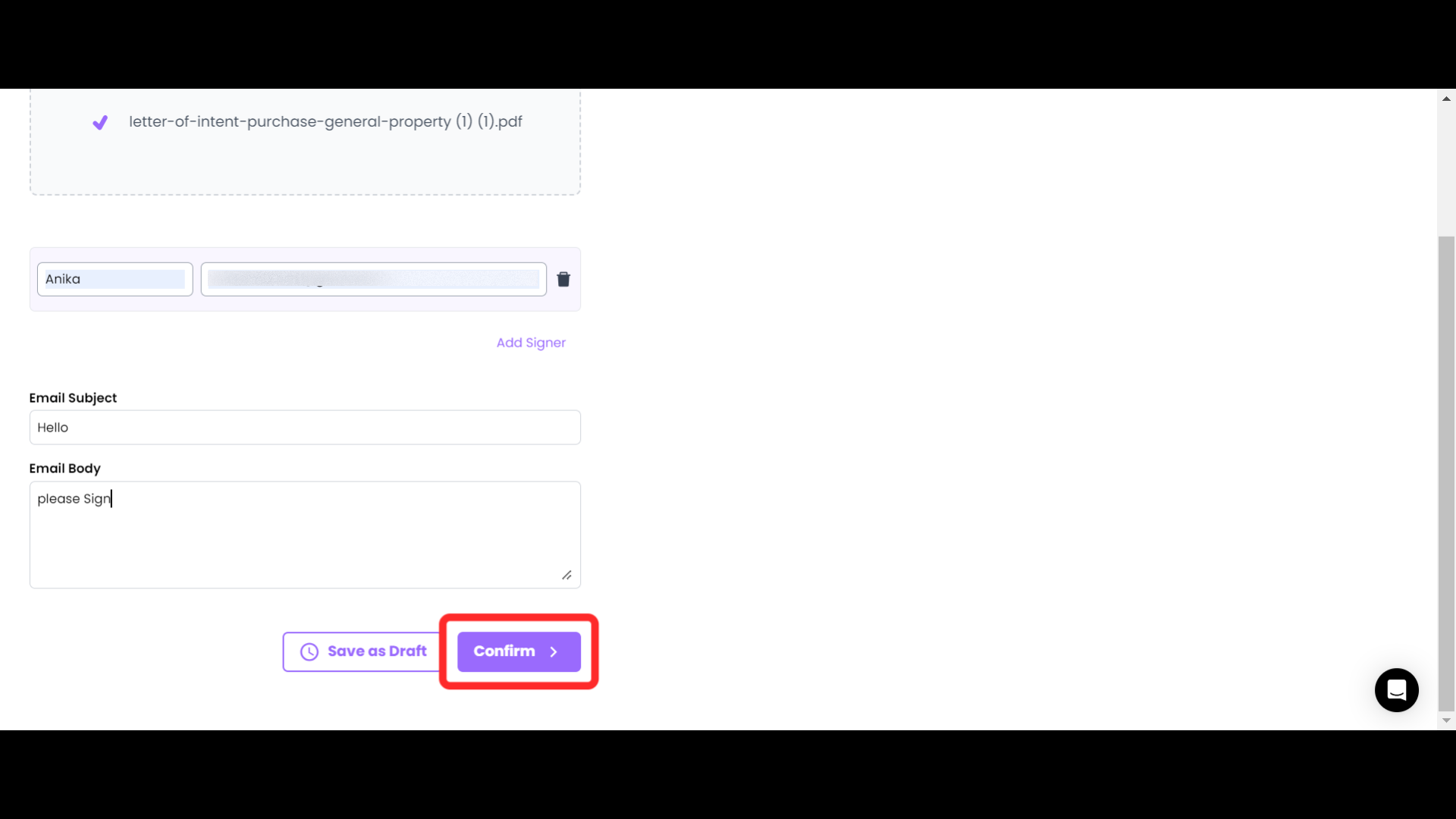
4. Enter a subject and a description for the mail.

<figure><img src="/files/rQveKBP8oOGYn5tH8myC" alt="enter subject and body for the mail"><figcaption></figcaption></figure>

5. Click on Confirm.

<figure><img src="/files/mhf6wxxqpCWbCwMYafaT" alt="click on confirm"><figcaption></figcaption></figure>

6. Now go to the “Select a Signer” section and select the name of the signer using the drop-down menu.

<figure><img src="/files/tn6cFJVNJ0O3Z12zE4nq" alt="select signer"><figcaption></figcaption></figure>

7. When the Signature box appears drag and drop it to its destined place or you can use the alignment options and then click on send.

<figure><img src="/files/YPo5xylhmh5pA3bIqHxU" alt="signature box"><figcaption></figcaption></figure>

## [Receiver Recipient's POV of Signing The Document](/dashboard-guides/single-pdf-signature/how-signing-works)


# How Signing Works?

This posts shows the process on how the Recipient can sign the Document

{% embed url="<https://youtu.be/kkUk71ZhGyI>" %}

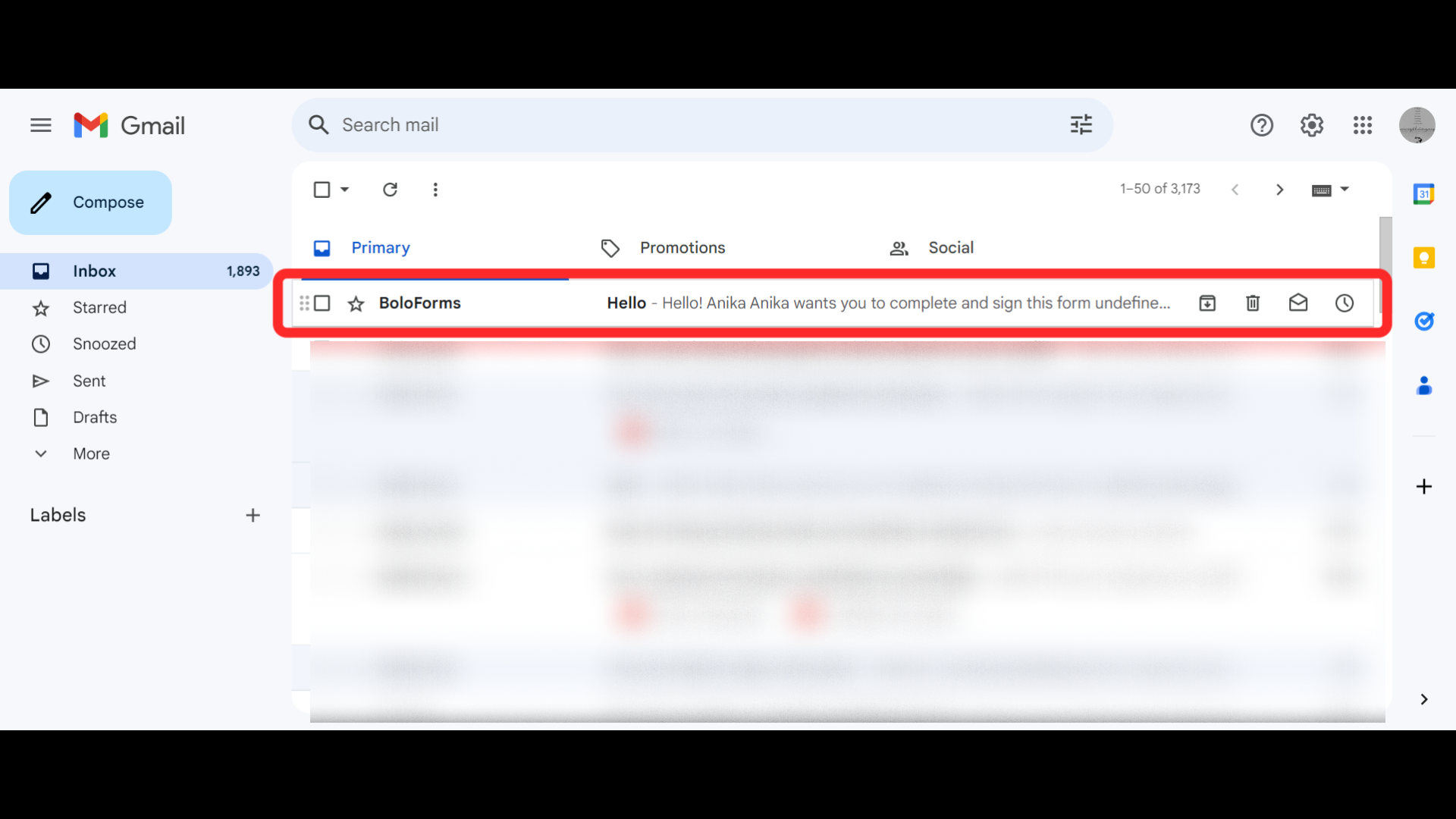
1. Open the mail received by BoloForms.

<figure><img src="/files/bnRMSdEOCIWyGmJAbxkd" alt="open boloforms mail"><figcaption></figcaption></figure>

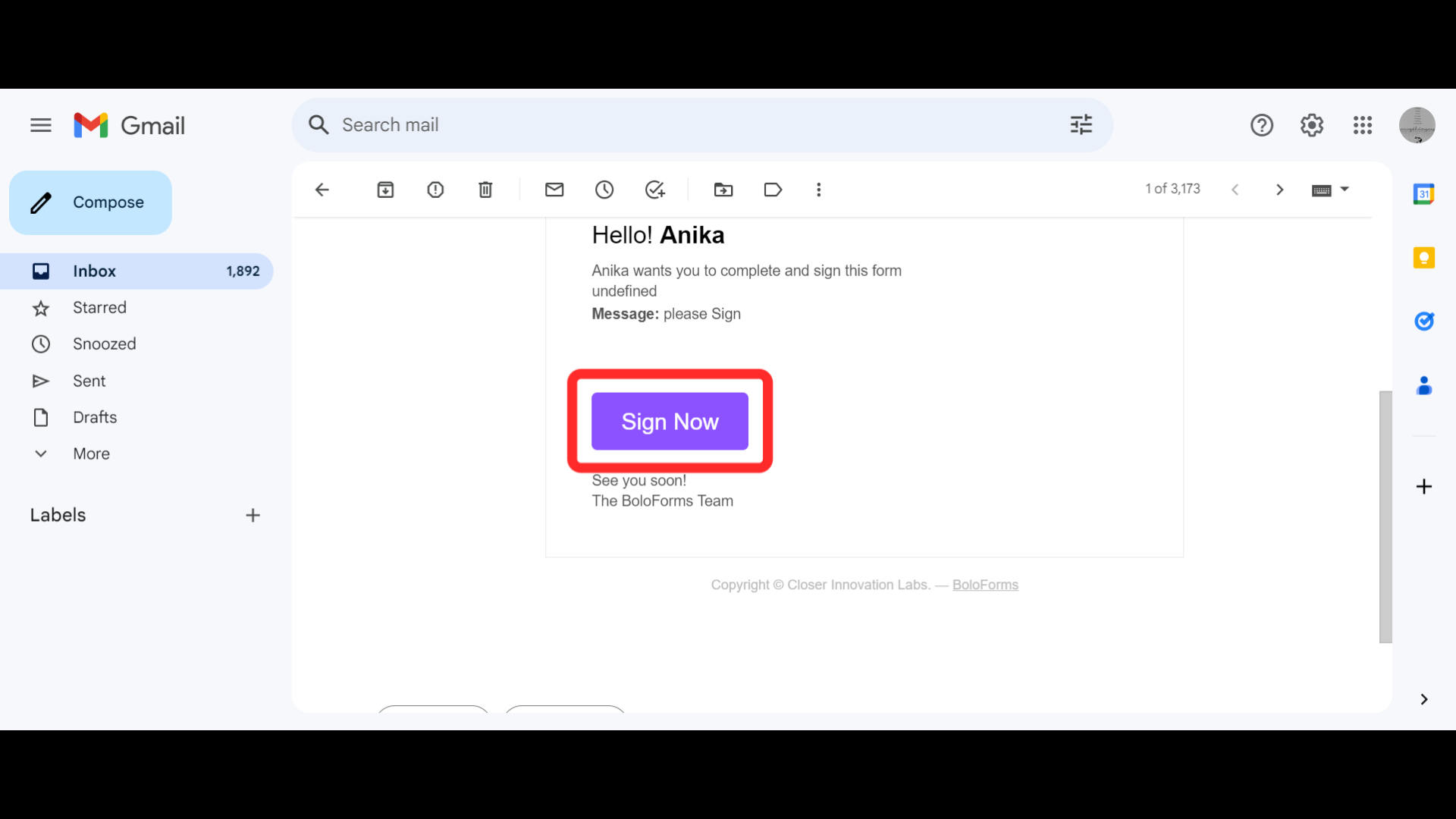
2. Click on “Sign Now” to sign the PDF.

<figure><img src="/files/zG7MG38XDiBIOwpncRrQ" alt=""><figcaption></figcaption></figure>

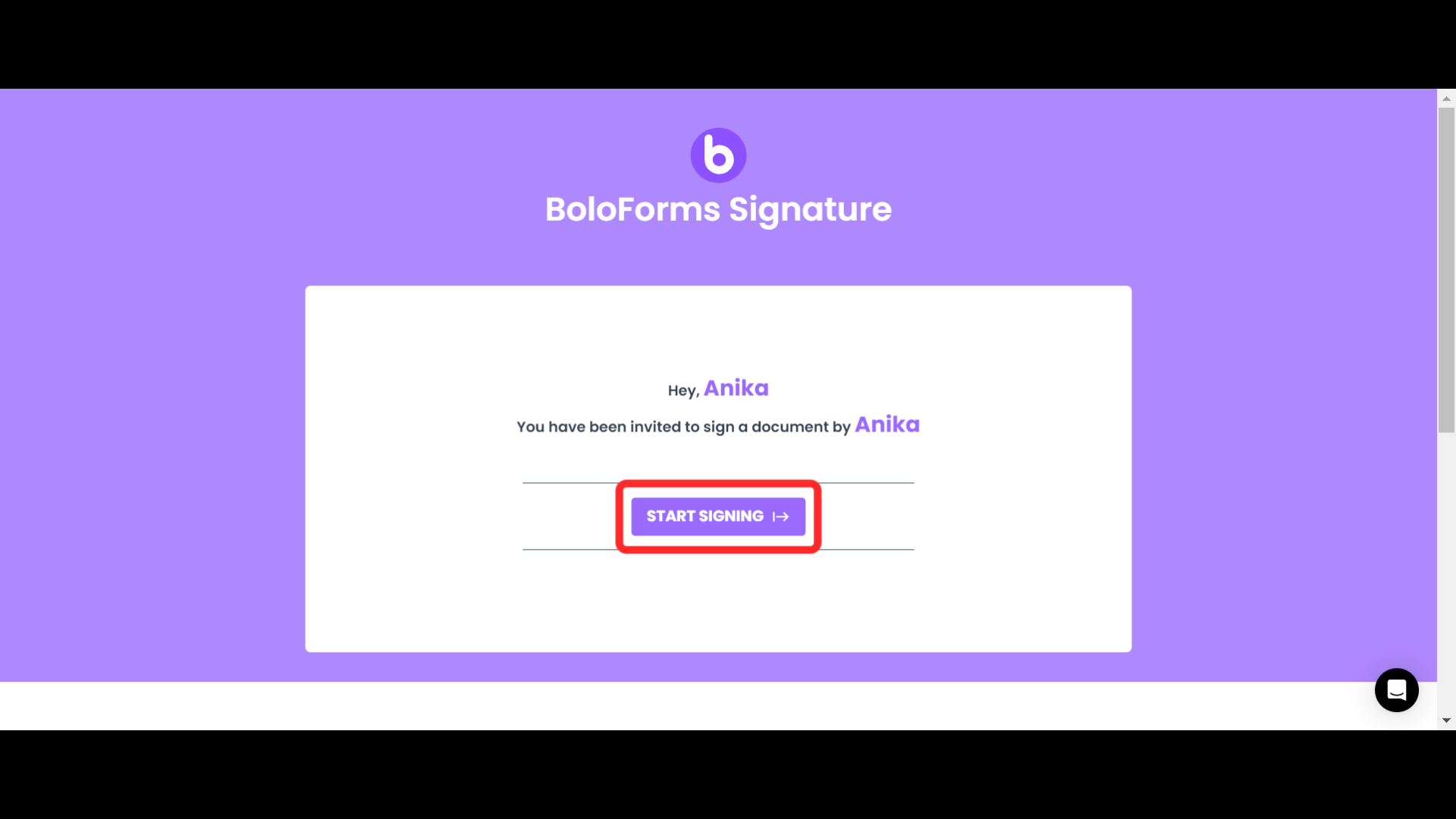
3. This will lead you to a new page where you click on “Start Signing”.

<figure><img src="/files/PmKdiK18sDMLkBrFAquV" alt="start signing"><figcaption></figcaption></figure>

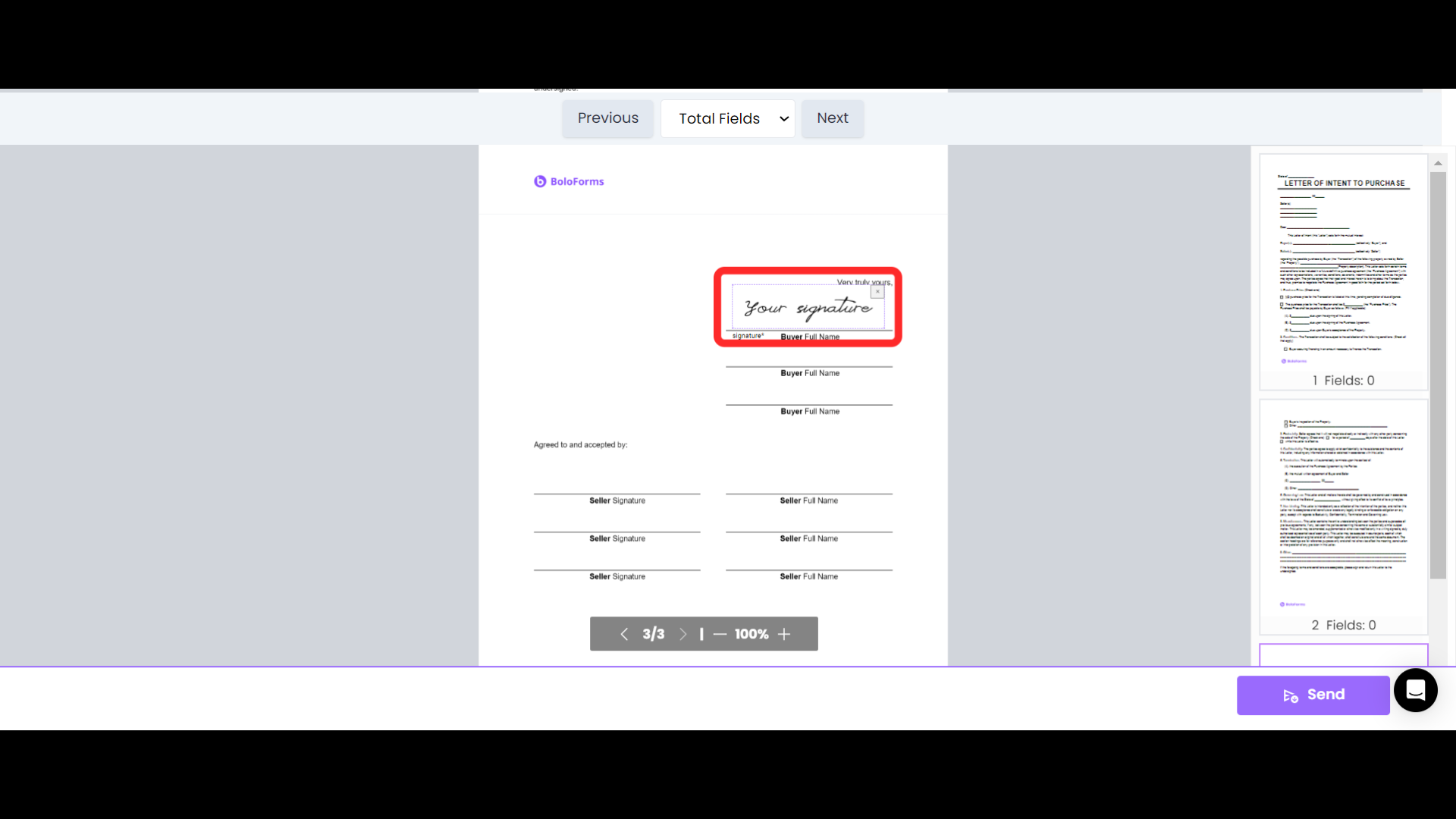
4. Click on the Signature box.

<figure><img src="/files/yS10FwOx4Y8UKMTQvOf3" alt="Signature Box"><figcaption></figcaption></figure>

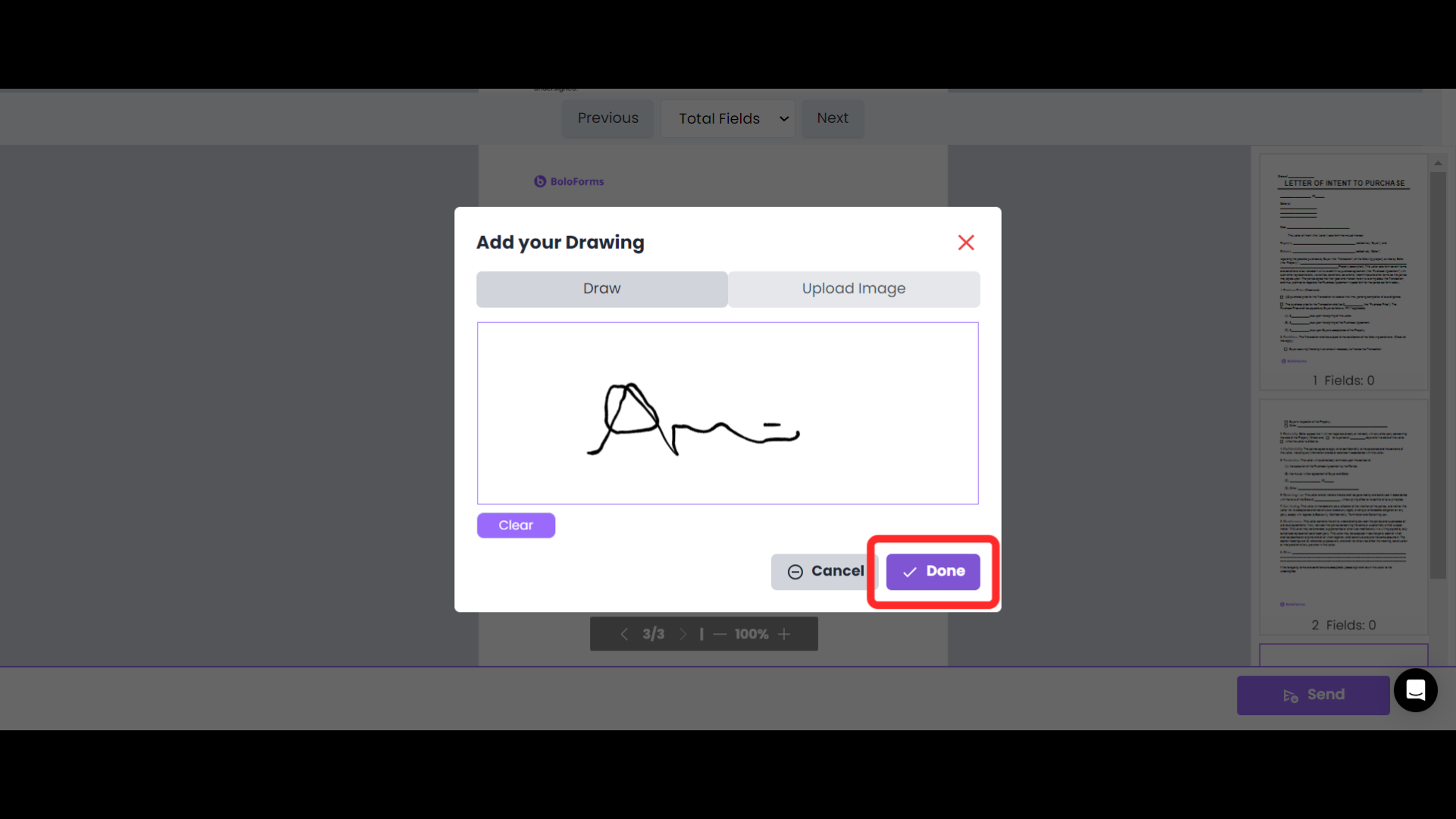
5. Add your Signature you can also use the clear button to sign again or Upload Image to upload an image of your Signature and then click on Done.

<figure><img src="/files/pU5gyvAnW6Zr9Nh0Cn4u" alt="sign"><figcaption></figcaption></figure>

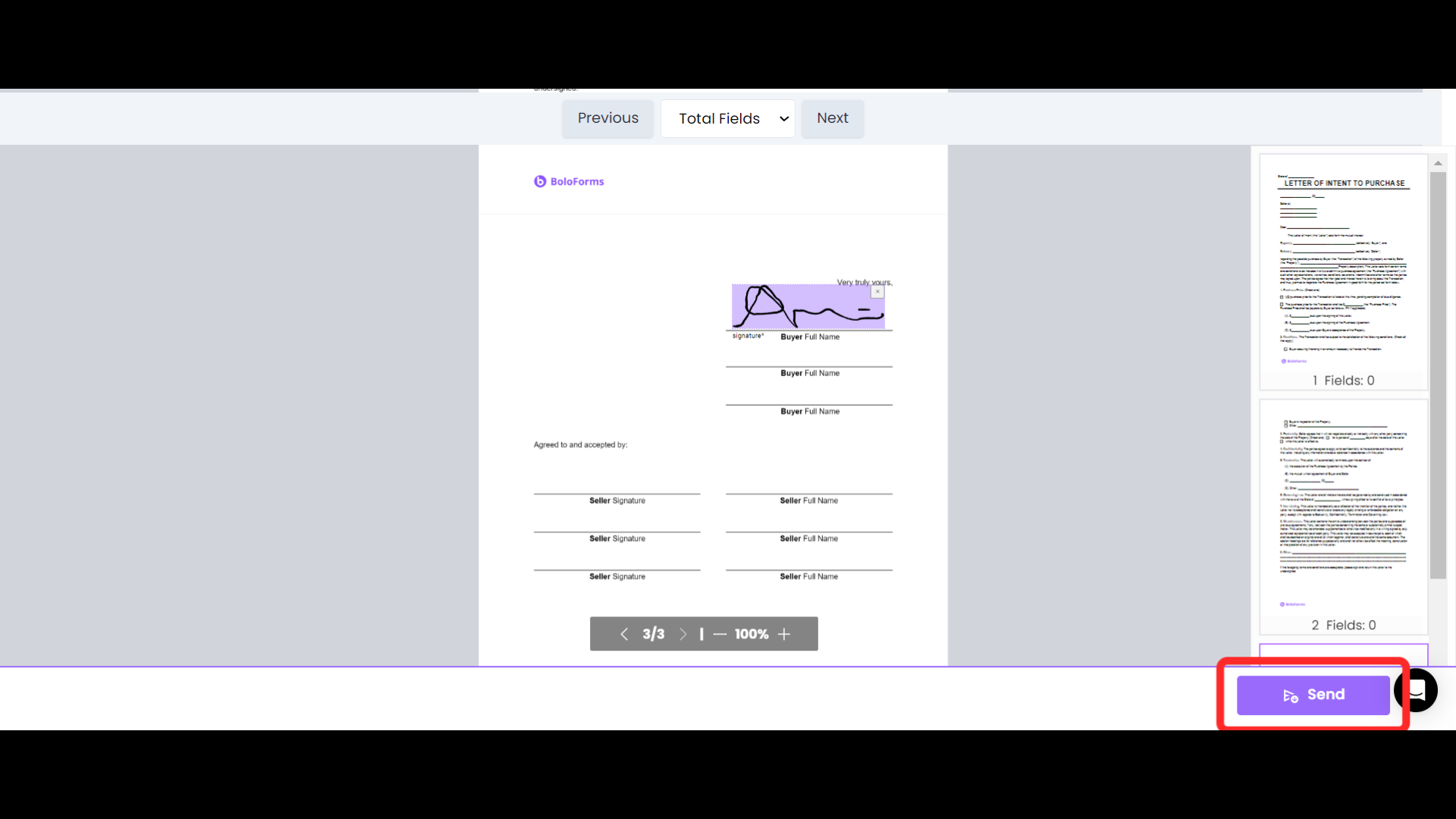
6. Click on Send to submit your signature.

<figure><img src="/files/wABFa1pgFe7moYmvDtNe" alt="click the send button"><figcaption></figcaption></figure>


# Documents Dashboard

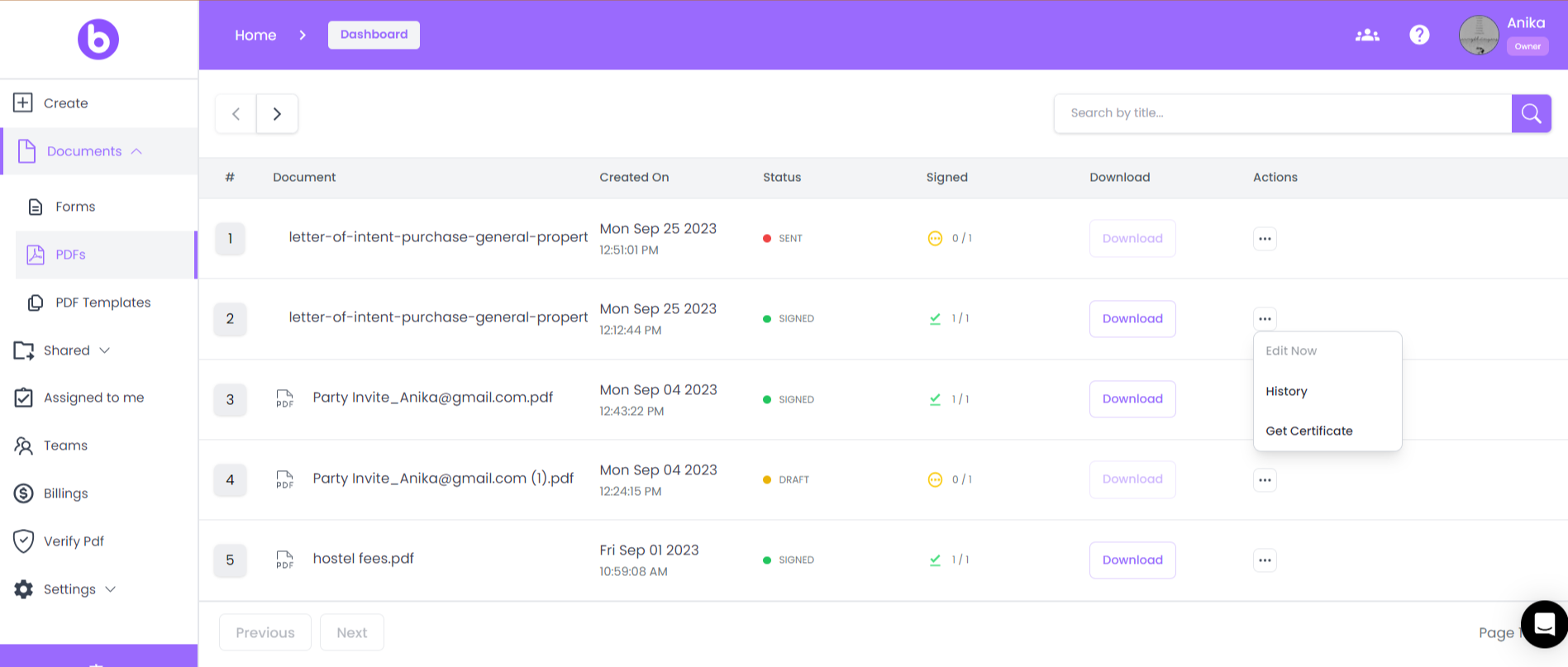
Overview of Documents Dashboard

Let's Discuss features and their meaning available on the Forms Dashboard.

<figure><img src="/files/YBe7d5UlRL6oTADNXbAS" alt=""><figcaption></figcaption></figure>

1. &#x20;**Status**- Tells if the Document is Signed, Unsigned, or Drafted.
2. &#x20;**Signed**- Tells the number of signatures requested and the number of signatures done.
3. **Download**- is used to download the signed PDF.
4. &#x20;**View**- The user can view the Signed Document and Download it.
5. &#x20;**Edit**- The user can edit the Signature Request if it is in Draft State.
6. &#x20;**History**- Get a Detailed History record for your document signature status


# Download Signed Documents

{% embed url="<https://youtu.be/6s7JGzNiJS4>" %}

#### Go to [BoloForms Signature](https://signature.boloforms.com)

#### 1. Click on Documents Dashboard

![Step 1 screenshot](https://images.tango.us/workflows/bae9cbc9-6696-4f17-bdb3-700f1de098e8/steps/7e04df99-63f0-4b0e-ae3b-bfa7f01c35ce/b1ef1117-eb77-4e4b-b571-2c12bff1b642.png?crop=focalpoint\&fit=crop\&fp-x=0.0375\&fp-y=0.2125\&fp-z=2.5436\&w=1200\&border=2%2CF4F2F7\&border-radius=8%2C8%2C8%2C8\&border-radius-inner=8%2C8%2C8%2C8\&blend-align=bottom\&blend-mode=normal\&blend-x=0\&blend-w=1200\&blend64=aHR0cHM6Ly9pbWFnZXMudGFuZ28udXMvc3RhdGljL21hZGUtd2l0aC10YW5nby13YXRlcm1hcmstdjIucG5n\&mark-x=9\&mark-y=308\&m64=aHR0cHM6Ly9pbWFnZXMudGFuZ28udXMvc3RhdGljL2JsYW5rLnBuZz9tYXNrPWNvcm5lcnMmYm9yZGVyPTYlMkNGRjc0NDImdz0yMTEmaD0xOTEmZml0PWNyb3AmY29ybmVyLXJhZGl1cz0xMA%3D%3D)

#### 2. Click on View for the document you want the signed document to download

![Step 2 screenshot](https://images.tango.us/workflows/bae9cbc9-6696-4f17-bdb3-700f1de098e8/steps/03fe15a6-034f-4c53-acfd-53ae30ba3695/f616e9b3-b2a5-48eb-9c81-1ef462209531.png?crop=focalpoint\&fit=crop\&fp-x=0.6281\&fp-y=0.2141\&fp-z=2.7149\&w=1200\&border=2%2CF4F2F7\&border-radius=8%2C8%2C8%2C8\&border-radius-inner=8%2C8%2C8%2C8\&blend-align=bottom\&blend-mode=normal\&blend-x=0\&blend-w=1200\&blend64=aHR0cHM6Ly9pbWFnZXMudGFuZ28udXMvc3RhdGljL21hZGUtd2l0aC10YW5nby13YXRlcm1hcmstdjIucG5n\&mark-x=537\&mark-y=237\&m64=aHR0cHM6Ly9pbWFnZXMudGFuZ28udXMvc3RhdGljL2JsYW5rLnBuZz9tYXNrPWNvcm5lcnMmYm9yZGVyPTYlMkNGRjc0NDImdz0yMjMmaD0xMDgmZml0PWNyb3AmY29ybmVyLXJhZGl1cz0xMA%3D%3D)

#### 3. Click on Get Signed Document

![Step 3 screenshot](https://images.tango.us/workflows/bae9cbc9-6696-4f17-bdb3-700f1de098e8/steps/4a4185ed-f567-44b6-a0f5-11256eeb2ac7/3ef8ced7-76eb-46cd-b0a4-90b263b44640.png?crop=focalpoint\&fit=crop\&fp-x=0.8494\&fp-y=0.9593\&fp-z=3.9657\&w=1200\&border=2%2CF4F2F7\&border-radius=8%2C8%2C8%2C8\&border-radius-inner=8%2C8%2C8%2C8\&blend-align=bottom\&blend-mode=normal\&blend-x=0\&blend-w=1200\&blend64=aHR0cHM6Ly9pbWFnZXMudGFuZ28udXMvc3RhdGljL21hZGUtd2l0aC10YW5nby13YXRlcm1hcmstdjIucG5n\&mark-x=117\&mark-y=588\&m64=aHR0cHM6Ly9pbWFnZXMudGFuZ28udXMvc3RhdGljL2JsYW5rLnBuZz9tYXNrPWNvcm5lcnMmYm9yZGVyPTYlMkNGRjc0NDImdz05NjcmaD0xNzgmZml0PWNyb3AmY29ybmVyLXJhZGl1cz0xMA%3D%3D)

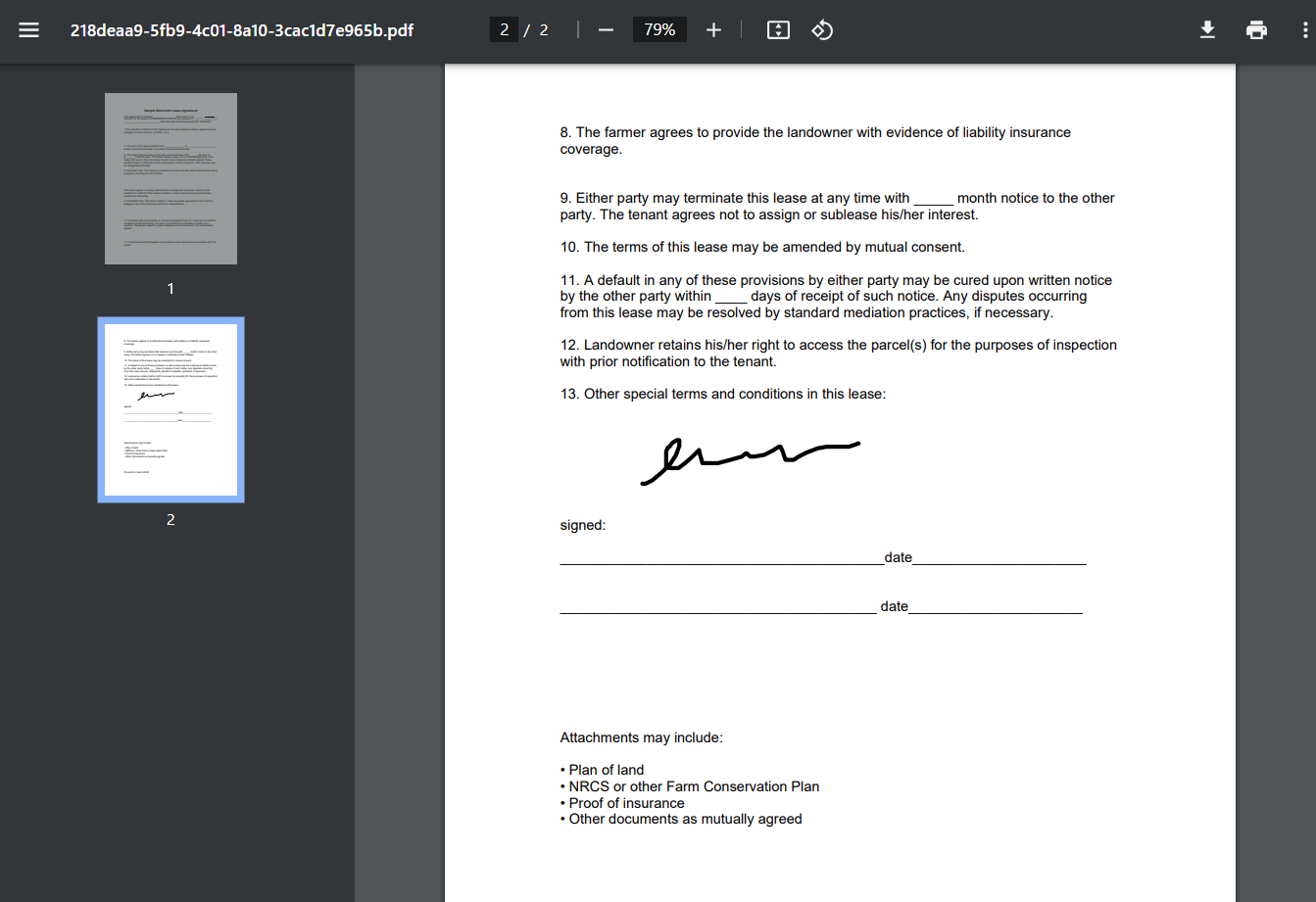
#### 4. The signature will be fetched.

![Step 4 screenshot](https://images.tango.us/workflows/bae9cbc9-6696-4f17-bdb3-700f1de098e8/steps/ff05ed4c-ee00-40a3-9181-55db59094a9f/257b7045-86d2-41ab-9ec6-ba1fdcb566a1.png?crop=focalpoint\&fit=crop\&fp-x=0.4762\&fp-y=0.5514\&fp-z=1.1404\&w=1200\&border=2%2CF4F2F7\&border-radius=8%2C8%2C8%2C8\&border-radius-inner=8%2C8%2C8%2C8\&blend-align=bottom\&blend-mode=normal\&blend-x=0\&blend-w=1200\&blend64=aHR0cHM6Ly9pbWFnZXMudGFuZ28udXMvc3RhdGljL21hZGUtd2l0aC10YW5nby13YXRlcm1hcmstdjIucG5n\&mark-x=294\&mark-y=9\&m64=aHR0cHM6Ly9pbWFnZXMudGFuZ28udXMvc3RhdGljL2JsYW5rLnBuZz9tYXNrPWNvcm5lcnMmYm9yZGVyPTYlMkNGRjc0NDImdz02MTEmaD03ODkmZml0PWNyb3AmY29ybmVyLXJhZGl1cz0xMA%3D%3D)

#### 5. Click on Download to get signed PDF Document.

![Step 5 screenshot](https://images.tango.us/workflows/bae9cbc9-6696-4f17-bdb3-700f1de098e8/steps/9ac1ceb2-ce16-4708-a141-140ec650a346/9e4d5fe6-f005-4cd5-bc81-701d900b54d2.png?crop=focalpoint\&fit=crop\&fp-x=0.6981\&fp-y=0.9593\&fp-z=2.8443\&w=1200\&border=2%2CF4F2F7\&border-radius=8%2C8%2C8%2C8\&border-radius-inner=8%2C8%2C8%2C8\&blend-align=bottom\&blend-mode=normal\&blend-x=0\&blend-w=1200\&blend64=aHR0cHM6Ly9pbWFnZXMudGFuZ28udXMvc3RhdGljL21hZGUtd2l0aC10YW5nby13YXRlcm1hcmstdjIucG5n\&mark-x=430\&mark-y=650\&m64=aHR0cHM6Ly9pbWFnZXMudGFuZ28udXMvc3RhdGljL2JsYW5rLnBuZz9tYXNrPWNvcm5lcnMmYm9yZGVyPTYlMkNGRjc0NDImdz0zMzkmaD0xMjgmZml0PWNyb3AmY29ybmVyLXJhZGl1cz0xMA%3D%3D)

<figure><img src="/files/B0u63z7Hpm9m61ASDMKh" alt=""><figcaption></figcaption></figure>


# Tracking Signature History

{% embed url="<https://youtu.be/9MuolAIn3kw>" %}

#### Go to [BoloForms Signature](https://signature.boloforms.com)

#### 1. Click on Documents Dashboard

![Step 1 screenshot](https://images.tango.us/workflows/57e47b69-490b-40fe-a33a-4fd313665ada/steps/dbfc9003-4ef9-4a3f-ac5b-ed5ad1de9c20/a46d7c32-503d-443f-b193-da0a9369db01.png?crop=focalpoint\&fit=crop\&fp-x=0.0468\&fp-y=0.2661\&fp-z=2.3998\&w=1200\&border=2%2CF4F2F7\&border-radius=8%2C8%2C8%2C8\&border-radius-inner=8%2C8%2C8%2C8\&blend-align=bottom\&blend-mode=normal\&blend-x=0\&blend-w=1200\&blend64=aHR0cHM6Ly9pbWFnZXMudGFuZ28udXMvc3RhdGljL21hZGUtd2l0aC10YW5nby13YXRlcm1hcmstdjIucG5n\&mark-x=10\&mark-y=291\&m64=aHR0cHM6Ly9pbWFnZXMudGFuZ28udXMvc3RhdGljL2JsYW5rLnBuZz9tYXNrPWNvcm5lcnMmYm9yZGVyPTYlMkNGRjc0NDImdz0yNDkmaD0yMjYmZml0PWNyb3AmY29ybmVyLXJhZGl1cz0xMA%3D%3D)

#### 2. Click on History for the partcular document

![Step 2 screenshot](https://images.tango.us/workflows/57e47b69-490b-40fe-a33a-4fd313665ada/steps/996a1cbf-850f-4ff1-8443-9fe1e048fa5d/71076c51-547d-4eaa-a638-c347c120ba3a.png?crop=focalpoint\&fit=crop\&fp-x=0.7709\&fp-y=0.2034\&fp-z=2.7617\&w=1200\&border=2%2CF4F2F7\&border-radius=8%2C8%2C8%2C8\&border-radius-inner=8%2C8%2C8%2C8\&blend-align=bottom\&blend-mode=normal\&blend-x=0\&blend-w=1200\&blend64=aHR0cHM6Ly9pbWFnZXMudGFuZ28udXMvc3RhdGljL21hZGUtd2l0aC10YW5nby13YXRlcm1hcmstdjIucG5n\&mark-x=440\&mark-y=335\&m64=aHR0cHM6Ly9pbWFnZXMudGFuZ28udXMvc3RhdGljL2JsYW5rLnBuZz9tYXNrPWNvcm5lcnMmYm9yZGVyPTYlMkNGRjc0NDImdz0zMjAmaD0xMzgmZml0PWNyb3AmY29ybmVyLXJhZGl1cz0xMA%3D%3D)

#### 3. Get Detailed History record for your document signature status

![Step 3 screenshot](https://images.tango.us/workflows/57e47b69-490b-40fe-a33a-4fd313665ada/steps/2cd37629-66f2-416c-a81b-f0a5ea767a70/bdb99fcd-7187-4f7b-a06c-92471127e1b6.png?crop=focalpoint\&fit=crop\&fp-x=0.5285\&fp-y=0.4823\&fp-z=1.1014\&w=1200\&border=2%2CF4F2F7\&border-radius=8%2C8%2C8%2C8\&border-radius-inner=8%2C8%2C8%2C8\&blend-align=bottom\&blend-mode=normal\&blend-x=0\&blend-w=1200\&blend64=aHR0cHM6Ly9pbWFnZXMudGFuZ28udXMvc3RhdGljL21hZGUtd2l0aC10YW5nby13YXRlcm1hcmstdjIucG5n\&mark-x=42\&mark-y=57\&m64=aHR0cHM6Ly9pbWFnZXMudGFuZ28udXMvc3RhdGljL2JsYW5rLnBuZz9tYXNrPWNvcm5lcnMmYm9yZGVyPTYlMkNGRjc0NDImdz0xMTE3Jmg9Njk0JmZpdD1jcm9wJmNvcm5lci1yYWRpdXM9MTA%3D)


# Forms Signature

Articles in this section:

<table data-card-size="large" data-view="cards" data-full-width="false"><thead><tr><th data-card-target data-type="content-ref"></th><th data-hidden></th><th data-hidden></th><th data-hidden></th></tr></thead><tbody><tr><td><a href="/pages/Ng7ILHe5yNGBQMR2ltEc">/pages/Ng7ILHe5yNGBQMR2ltEc</a></td><td></td><td></td><td></td></tr><tr><td><a href="/pages/lQZ0zosOELe86XZnPJMH">/pages/lQZ0zosOELe86XZnPJMH</a></td><td></td><td></td><td></td></tr><tr><td><a href="/pages/dJcBl8rdj1jbQRh5oVgT">/pages/dJcBl8rdj1jbQRh5oVgT</a></td><td></td><td></td><td></td></tr><tr><td><a href="/pages/o5dQiqb18BvxKKZgGPSX">/pages/o5dQiqb18BvxKKZgGPSX</a></td><td></td><td></td><td></td></tr><tr><td><a href="/pages/pc7QOZce9h3NheLeg5Ro">/pages/pc7QOZce9h3NheLeg5Ro</a></td><td></td><td></td><td></td></tr><tr><td><a href="/pages/V4uDhAGbKc4Gov11DDRn">/pages/V4uDhAGbKc4Gov11DDRn</a></td><td></td><td></td><td></td></tr></tbody></table>


# Creating Signature Forms

{% embed url="<https://youtu.be/sUwpaRmevbo>" %}

#### Go to [BoloForms Signature](https://signature.boloforms.com/create)

1. Click on the Form option to add signatures to your form and to create a form using BoloForms.

<figure><img src="/files/3N1PxQSCV3USmvyd3rDW" alt="select form on dashboard"><figcaption></figcaption></figure>

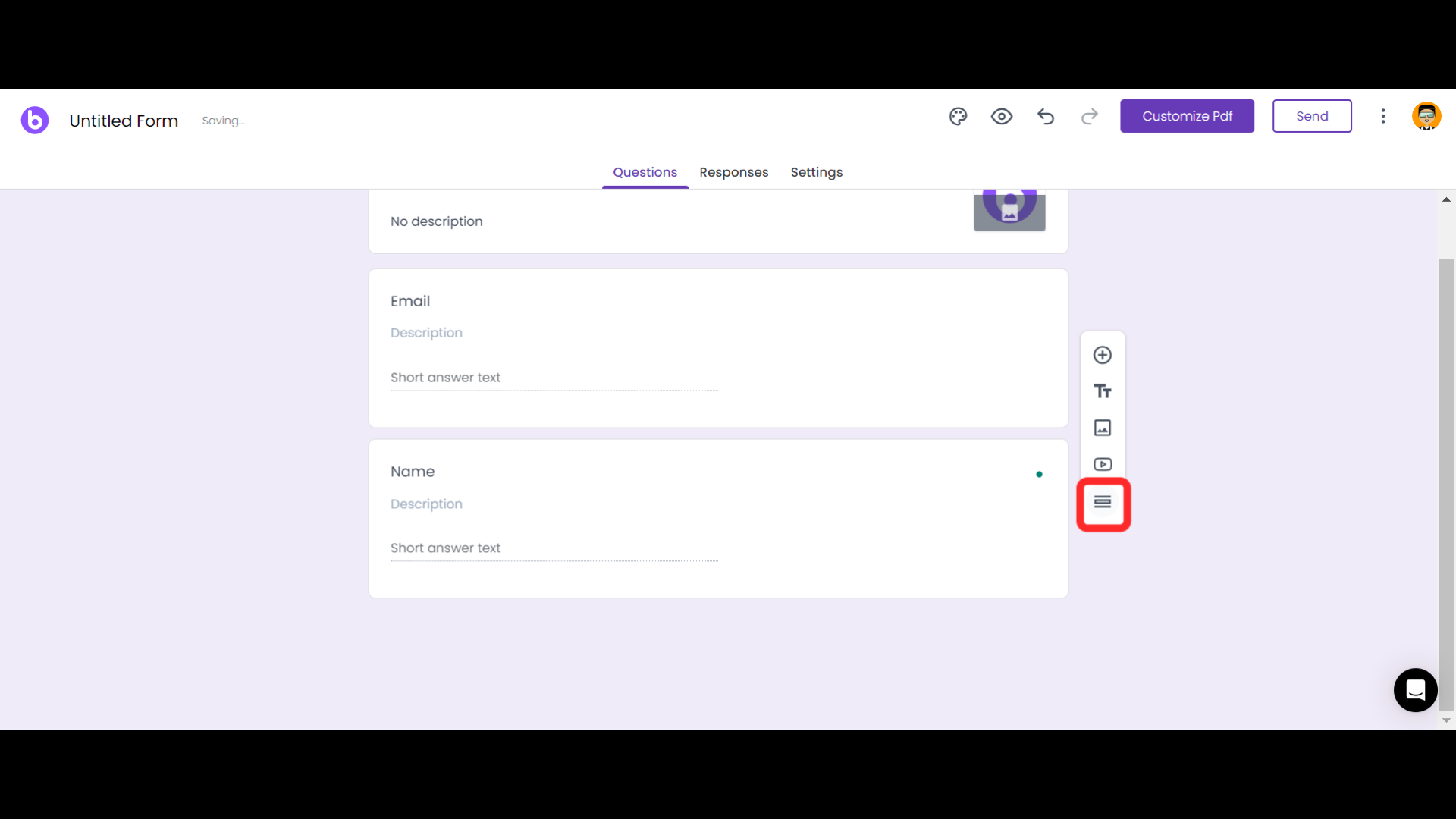
2. You can add questions by clicking on the Plus sign on the side menu.

<figure><img src="/files/NILz8UHZaDYZqG6Nw5ah" alt="add questions"><figcaption></figcaption></figure>

3. You can choose different types of question options from the drop-down menu including Signatures.

<figure><img src="/files/gyrEB3uYfkrBGt24D8JM" alt=""><figcaption></figcaption></figure>

4. Select the Signature option to add the Signature row.

<figure><img src="/files/WdA3bPFdJgMZY7jD9kEG" alt=""><figcaption></figcaption></figure>

5. Click on the selected sign to add another page to your form.

<figure><img src="/files/Vq0fxMX1NGFVaEVbjAr9" alt=""><figcaption></figcaption></figure>

6. You can also alter the theme settings by clicking on the pallet sign in the top right corner. The Theme settings consist of different options such as templates, font, accent colors, and background colors.

<figure><img src="/files/7pJw8OmHx4pUMuJMIkqw" alt="theme settings"><figcaption></figcaption></figure>

7. Click on the Customize PDF button in the top right corner to add a PDF to your Form.

<figure><img src="/files/Fj1Na9OHEJNf5IqV6d0w" alt=""><figcaption></figcaption></figure>

8. Add the PDF then click on Continue.

<figure><img src="/files/d9hNAcBIHOCESx16skyP" alt="click continue"><figcaption></figcaption></figure>

9. Add the field that needs to be added under the "Pick questions from your form" and then click on save.

<figure><img src="/files/BYoqRdp6p4sB4yPcRXf3" alt="save button"><figcaption></figcaption></figure>

10. &#x20;Click on send to share the Form.

<figure><img src="/files/UJBKqFmoFMso5oEDjGHI" alt="click on send"><figcaption></figcaption></figure>

11. You can either send the form through mail or alternatively share the link or embed the form as an HTML code.

<figure><img src="/files/Ehv4ZseVtqcdH9mznLtZ" alt=""><figcaption></figcaption></figure>


# Forms Dashboard

{% embed url="<https://youtu.be/UVCIHQSZjQs>" %}

Let's Discuss features and their meaning available on the Forms Dashboard.

<figure><img src="/files/1C3eafAg7h2yZuzXaGzl" alt=""><figcaption></figcaption></figure>

1. **Responses**- View the form signature and form responses for a particular form
2. **Edit Form**- This allows you to edit your existing form.
3. **Preview Form**- You can Preview your Form with this option, before sharing it with the recipients.
4. **Edit PDF**- This allows you to edit your existing PDF if you have added any to the form.
5. **Replace PDF**- Using this you can replace the PDF which you added to the form.
6. **Bulk Send**- You can now send the form to multiple people at once.


# Sending Signature Forms

{% embed url="<https://www.youtube.com/watch?v=d4F7ELeY9VM>" %}

#### Open your existing Signature Form or create a [new one](https://signature.boloforms.com/create).

&#x20;1\. Click on send to share the Form.

<figure><img src="/files/UJBKqFmoFMso5oEDjGHI" alt=""><figcaption></figcaption></figure>

2. You can either send the form through mail or alternatively share the link or embed the form as an HTML code.

<figure><img src="/files/Ehv4ZseVtqcdH9mznLtZ" alt=""><figcaption></figcaption></figure>

#### Alternatively, you can [Embed](broken://pages/pc7QOZce9h3NheLeg5Ro) your Signature Forms to save your Time!


# Tracking Signature Responses

{% embed url="<https://youtu.be/4LoBB2LiFvo>" %}

#### Go to [BoloForms Signature](https://signature.boloforms.com)

#### 1. Head over to the Forms Dashboard

![Step 1 screenshot](https://images.tango.us/workflows/36201aab-54aa-45fa-90ad-ecff6ee55e64/steps/55046b27-eb20-45c5-a028-343fe5127968/e909da62-b9aa-453f-b164-3c1a579db3e4.png?crop=focalpoint\&fit=crop\&fp-x=0.0522\&fp-y=0.4090\&fp-z=2.3338\&w=1200\&border=2%2CF4F2F7\&border-radius=8%2C8%2C8%2C8\&border-radius-inner=8%2C8%2C8%2C8\&blend-align=bottom\&blend-mode=normal\&blend-x=0\&blend-w=1200\&blend64=aHR0cHM6Ly9pbWFnZXMudGFuZ28udXMvc3RhdGljL21hZGUtd2l0aC10YW5nby13YXRlcm1hcmstdjIucG5n\&mark-x=12\&mark-y=283\&m64=aHR0cHM6Ly9pbWFnZXMudGFuZ28udXMvc3RhdGljL2JsYW5rLnBuZz9tYXNrPWNvcm5lcnMmYm9yZGVyPTYlMkNGRjc0NDImdz0yNjgmaD0yNDImZml0PWNyb3AmY29ybmVyLXJhZGl1cz0xMA%3D%3D)

#### 2. Click on Responses for the required signature form

![Step 2 screenshot](https://images.tango.us/workflows/36201aab-54aa-45fa-90ad-ecff6ee55e64/steps/882cc129-0a36-43d5-9d1e-40bd3555f2ce/3b7f236b-05ae-494c-bb95-6f5354b3e252.png?crop=focalpoint\&fit=crop\&fp-x=0.6347\&fp-y=0.3405\&fp-z=2.3273\&w=1200\&border=2%2CF4F2F7\&border-radius=8%2C8%2C8%2C8\&border-radius-inner=8%2C8%2C8%2C8\&blend-align=bottom\&blend-mode=normal\&blend-x=0\&blend-w=1200\&blend64=aHR0cHM6Ly9pbWFnZXMudGFuZ28udXMvc3RhdGljL21hZGUtd2l0aC10YW5nby13YXRlcm1hcmstdjIucG5n\&mark-x=419\&mark-y=341\&m64=aHR0cHM6Ly9pbWFnZXMudGFuZ28udXMvc3RhdGljL2JsYW5rLnBuZz9tYXNrPWNvcm5lcnMmYm9yZGVyPTYlMkNGRjc0NDImdz0zNjImaD0xMjUmZml0PWNyb3AmY29ybmVyLXJhZGl1cz0xMA%3D%3D)

#### 3. And Done! Access all the form responses with signatures.

![Step 3 screenshot](https://images.tango.us/workflows/36201aab-54aa-45fa-90ad-ecff6ee55e64/steps/43fb23e4-d7d1-4c4f-acde-c38fb49090ad/0aa57795-3d74-4753-bb39-1f350d7c40f0.png?crop=focalpoint\&fit=crop\&fp-x=0.5367\&fp-y=0.4368\&fp-z=1.0929\&w=1200\&border=2%2CF4F2F7\&border-radius=8%2C8%2C8%2C8\&border-radius-inner=8%2C8%2C8%2C8\&blend-align=bottom\&blend-mode=normal\&blend-x=0\&blend-w=1200\&blend64=aHR0cHM6Ly9pbWFnZXMudGFuZ28udXMvc3RhdGljL21hZGUtd2l0aC10YW5nby13YXRlcm1hcmstdjIucG5n\&mark-x=8\&mark-y=205\&m64=aHR0cHM6Ly9pbWFnZXMudGFuZ28udXMvc3RhdGljL2JsYW5rLnBuZz9tYXNrPWNvcm5lcnMmYm9yZGVyPTYlMkNGRjc0NDImdz0xMTg1Jmg9MzYxJmZpdD1jcm9wJmNvcm5lci1yYWRpdXM9MTA%3D)


# Send Bulk Signature Requests

{% embed url="<https://youtu.be/SQCfm49nvpY>" %}


# Customize PDF

{% embed url="<https://youtu.be/Q9OuATMWcmU>" %}

1. Open the form in which you want to add a customized PDF and click on the Customize PDF.&#x20;

<figure><img src="/files/Lq0zVwtyQBGAJIMWFu6d" alt=""><figcaption></figcaption></figure>

2. Add the PDF that you want to customize you can also drag and drop the pdf after that click on continue.

<figure><img src="/files/qBwJQcSE21hUu3ReyhnZ" alt=""><figcaption></figcaption></figure>

3. Select the field which you want to be added from the drop-down menu and then drag the field box where you wish to place it.

<figure><img src="/files/ocogHpun2GtQiw6OOHrV" alt=""><figcaption></figcaption></figure>

4. Click on save.

<figure><img src="/files/PKTwy1dOUP5rc8rXWzdu" alt=""><figcaption></figcaption></figure>


# Teams

Articles in this section-

<table data-card-size="large" data-view="cards"><thead><tr><th data-card-target data-type="content-ref"></th><th data-hidden></th><th data-hidden></th><th data-hidden></th></tr></thead><tbody><tr><td><a href="/pages/Yar0TrCQG6ft7abwNcHH">/pages/Yar0TrCQG6ft7abwNcHH</a></td><td></td><td></td><td></td></tr></tbody></table>


# Collaborators

This Post describes how to manage Collaborator on your BoloForms Signatrue Team

{% embed url="<https://youtu.be/s9aDrQThiTI>" %}

#### Go to [BoloForms Signature](https://signature.boloforms.com)

#### 1. Go to the Teams section

![Step 1 screenshot](https://images.tango.us/workflows/71bac4e2-43d5-4325-a719-ba82e708e4b2/steps/8b750571-b4e1-4a67-9855-3919951fc654/3ee6ad30-c76a-49c6-9716-dc0a4243812f.png?crop=focalpoint\&fit=crop\&fp-x=0.0425\&fp-y=0.5246\&fp-z=2.4696\&w=1200\&border=2%2CF4F2F7\&border-radius=8%2C8%2C8%2C8\&border-radius-inner=8%2C8%2C8%2C8\&blend-align=bottom\&blend-mode=normal\&blend-x=0\&blend-w=1200\&blend64=aHR0cHM6Ly9pbWFnZXMudGFuZ28udXMvc3RhdGljL21hZGUtd2l0aC10YW5nby13YXRlcm1hcmstdjIucG5n\&mark-x=11\&mark-y=299\&m64=aHR0cHM6Ly9pbWFnZXMudGFuZ28udXMvc3RhdGljL2JsYW5rLnBuZz9tYXNrPWNvcm5lcnMmYm9yZGVyPTYlMkNGRjc0NDImdz0yMzEmaD0yMDkmZml0PWNyb3AmY29ybmVyLXJhZGl1cz0xMA%3D%3D)

#### 2. Click on Add Collaborator

![Step 2 screenshot](https://images.tango.us/workflows/71bac4e2-43d5-4325-a719-ba82e708e4b2/steps/2d061b04-653d-4940-a5f8-5cd897e60983/c6e2aa06-954f-417b-9c9b-7e9ed4cf7201.png?crop=focalpoint\&fit=crop\&fp-x=0.2450\&fp-y=0.2270\&fp-z=1.6715\&w=1200\&border=2%2CF4F2F7\&border-radius=8%2C8%2C8%2C8\&border-radius-inner=8%2C8%2C8%2C8\&blend-align=bottom\&blend-mode=normal\&blend-x=0\&blend-w=1200\&blend64=aHR0cHM6Ly9pbWFnZXMudGFuZ28udXMvc3RhdGljL21hZGUtd2l0aC10YW5nby13YXRlcm1hcmstdjIucG5n\&mark-x=192\&mark-y=270\&m64=aHR0cHM6Ly9pbWFnZXMudGFuZ28udXMvc3RhdGljL2JsYW5rLnBuZz9tYXNrPWNvcm5lcnMmYm9yZGVyPTYlMkNGRjc0NDImdz01OTgmaD03MiZmaXQ9Y3JvcCZjb3JuZXItcmFkaXVzPTEw)

#### 3. Enter the Collaborator Email address and permission to the user (View only and Editor)

![Step 3 screenshot](https://images.tango.us/workflows/71bac4e2-43d5-4325-a719-ba82e708e4b2/steps/939483a5-7855-4710-b55c-8e2c96335a0a/c31887e9-1836-483c-9591-e27752a7fda7.png?crop=focalpoint\&fit=crop\&fp-x=0.5032\&fp-y=0.5091\&fp-z=1.3257\&w=1200\&border=2%2CF4F2F7\&border-radius=8%2C8%2C8%2C8\&border-radius-inner=8%2C8%2C8%2C8\&blend-align=bottom\&blend-mode=normal\&blend-x=0\&blend-w=1200\&blend64=aHR0cHM6Ly9pbWFnZXMudGFuZ28udXMvc3RhdGljL21hZGUtd2l0aC10YW5nby13YXRlcm1hcmstdjIucG5n\&mark-x=190\&mark-y=289\&m64=aHR0cHM6Ly9pbWFnZXMudGFuZ28udXMvc3RhdGljL2JsYW5rLnBuZz9tYXNrPWNvcm5lcnMmYm9yZGVyPTYlMkNGRjc0NDImdz04MTkmaD0yMzAmZml0PWNyb3AmY29ybmVyLXJhZGl1cz0xMA%3D%3D)

#### 4. Click on Add Collaborator

![Step 4 screenshot](https://images.tango.us/workflows/71bac4e2-43d5-4325-a719-ba82e708e4b2/steps/0b7f085e-395a-4e86-864f-504708953317/dce4eee2-4f9f-4500-b6bc-38b5372ab3f4.png?crop=focalpoint\&fit=crop\&fp-x=0.3181\&fp-y=0.6488\&fp-z=2.3312\&w=1200\&border=2%2CF4F2F7\&border-radius=8%2C8%2C8%2C8\&border-radius-inner=8%2C8%2C8%2C8\&blend-align=bottom\&blend-mode=normal\&blend-x=0\&blend-w=1200\&blend64=aHR0cHM6Ly9pbWFnZXMudGFuZ28udXMvc3RhdGljL21hZGUtd2l0aC10YW5nby13YXRlcm1hcmstdjIucG5n\&mark-x=420\&mark-y=353\&m64=aHR0cHM6Ly9pbWFnZXMudGFuZ28udXMvc3RhdGljL2JsYW5rLnBuZz9tYXNrPWNvcm5lcnMmYm9yZGVyPTYlMkNGRjc0NDImdz0zNjEmaD0xMDEmZml0PWNyb3AmY29ybmVyLXJhZGl1cz0xMA%3D%3D)

#### 5. And the Collaborator has been added

![Step 5 screenshot](https://images.tango.us/workflows/71bac4e2-43d5-4325-a719-ba82e708e4b2/steps/dd8d9802-60cd-405c-8a68-6f4fa24059e5/7c6aac03-c56e-4640-8b63-0ee9c41cee1f.png?crop=focalpoint\&fit=crop\&fp-x=0.2464\&fp-y=0.3512\&fp-z=1.6283\&w=1200\&border=2%2CF4F2F7\&border-radius=8%2C8%2C8%2C8\&border-radius-inner=8%2C8%2C8%2C8\&blend-align=bottom\&blend-mode=normal\&blend-x=0\&blend-w=1200\&blend64=aHR0cHM6Ly9pbWFnZXMudGFuZ28udXMvc3RhdGljL21hZGUtd2l0aC10YW5nby13YXRlcm1hcmstdjIucG5n\&mark-x=175\&mark-y=298\&m64=aHR0cHM6Ly9pbWFnZXMudGFuZ28udXMvc3RhdGljL2JsYW5rLnBuZz9tYXNrPWNvcm5lcnMmYm9yZGVyPTYlMkNGRjc0NDImdz02MTQmaD0yMTEmZml0PWNyb3AmY29ybmVyLXJhZGl1cz0xMA%3D%3D)

#### 6. Features to manage collaborators:

1. Edit Collaborator
2. Delete Collaborator&#x20;

<figure><img src="https://images.tango.us/workflows/71bac4e2-43d5-4325-a719-ba82e708e4b2/steps/1a93d6e6-7ec1-4b4a-bf28-3e5871a59a51/460b2bd2-7d90-48c4-b87e-2dad13fb6d83.png?crop=focalpoint&#x26;fit=crop&#x26;fp-x=0.2943&#x26;fp-y=0.4128&#x26;fp-z=1.8698&#x26;w=1200&#x26;border=2%2CF4F2F7&#x26;border-radius=8%2C8%2C8%2C8&#x26;border-radius-inner=8%2C8%2C8%2C8&#x26;blend-align=bottom&#x26;blend-mode=normal&#x26;blend-x=0&#x26;blend-w=1200&#x26;blend64=aHR0cHM6Ly9pbWFnZXMudGFuZ28udXMvc3RhdGljL21hZGUtd2l0aC10YW5nby13YXRlcm1hcmstdjIucG5n&#x26;mark-x=138&#x26;mark-y=189&#x26;m64=aHR0cHM6Ly9pbWFnZXMudGFuZ28udXMvc3RhdGljL2JsYW5rLnBuZz9tYXNrPWNvcm5lcnMmYm9yZGVyPTYlMkNGRjc0NDImdz03MDUmaD0zMTUmZml0PWNyb3AmY29ybmVyLXJhZGl1cz0xMA%3D%3D" alt=""><figcaption></figcaption></figure>


# PDF Templates

Create your own PDF Templates and get it signed in a simple and hassle free way.


# Generating PDF Template

{% embed url="<https://www.youtube.com/watch?v=vrSgKLdGB34>" %}

#### Go to [BoloForms Signature](https://signature.boloforms.com/create)

1. Click on PDF Template to create your own PDF template that you want to get signed.

<figure><img src="/files/pxxngM0nAuIPrGk7JVzr" alt="select pdf template"><figcaption></figcaption></figure>

2. Add the PDF under the “Upload your PDF here” section and also add the role under the “Role” section.

<figure><img src="/files/6iPUF3mVGTezi7mEnhYy" alt="upload pdf"><figcaption></figcaption></figure>

3. You can also add a Message for the receiver under the “Add Private Message” section.

<figure><img src="/files/YrdQzFNjYiDGdBdmIeeB" alt=""><figcaption></figcaption></figure>

4. After which you can click on continue.

<figure><img src="/files/qgrgn5jKPEuktXB7d6Mw" alt=""><figcaption></figcaption></figure>

5. Add the signature box by clicking on Signature. You can also add initials, text, and date.

<figure><img src="/files/p1VsVcMFTfaPIE1shZaD" alt=""><figcaption></figcaption></figure>

6. Drag and drop the signature box and place it where needed after which you can click on “Save Template” to save the template.

<figure><img src="/files/jRiEB46xi8WNg6JLnGdS" alt="save template"><figcaption></figcaption></figure>

7. Add the details of the receiver and then click on “Send Email” to send the email to the signer.

<figure><img src="/files/68Qh4SYR0uqN43dw9Lan" alt=""><figcaption></figcaption></figure>


# Key Generation

#### 1. Click on Settings

![Step 1 screenshot](https://images.tango.us/workflows/df76aee3-828b-4c99-93cb-336f711e9a83/steps/12387875-1725-46b9-92b8-4793c76c2e80/61d33a49-8c00-4ca0-83a3-1d3bbc048860.png?crop=focalpoint\&fit=crop\&fp-x=0.0717\&fp-y=0.5727\&fp-z=2.2827\&w=1200\&border=2%2CF4F2F7\&border-radius=8%2C8%2C8%2C8\&border-radius-inner=8%2C8%2C8%2C8\&blend-align=bottom\&blend-mode=normal\&blend-x=0\&blend-w=1200\&blend64=aHR0cHM6Ly9pbWFnZXMudGFuZ28udXMvc3RhdGljL21hZGUtd2l0aC10YW5nby13YXRlcm1hcmstdjIucG5n\&mark-x=7\&mark-y=305\&m64=aHR0cHM6Ly9pbWFnZXMudGFuZ28udXMvc3RhdGljL2JsYW5rLnBuZz9tYXNrPWNvcm5lcnMmYm9yZGVyPTYlMkNGRjc0NDImdz0zNzgmaD0xMzImZml0PWNyb3AmY29ybmVyLXJhZGl1cz0xMA%3D%3D)

#### 2. Click on API Key

![Step 2 screenshot](https://images.tango.us/workflows/df76aee3-828b-4c99-93cb-336f711e9a83/steps/0aaabd17-26f8-43f1-9273-e39c67d636ca/9c735d73-d462-4553-9436-05f67418119c.png?crop=focalpoint\&fit=crop\&fp-x=0.0717\&fp-y=0.7245\&fp-z=2.2827\&w=1200\&border=2%2CF4F2F7\&border-radius=8%2C8%2C8%2C8\&border-radius-inner=8%2C8%2C8%2C8\&blend-align=bottom\&blend-mode=normal\&blend-x=0\&blend-w=1200\&blend64=aHR0cHM6Ly9pbWFnZXMudGFuZ28udXMvc3RhdGljL21hZGUtd2l0aC10YW5nby13YXRlcm1hcmstdjIucG5n\&mark-x=7\&mark-y=305\&m64=aHR0cHM6Ly9pbWFnZXMudGFuZ28udXMvc3RhdGljL2JsYW5rLnBuZz9tYXNrPWNvcm5lcnMmYm9yZGVyPTYlMkNGRjc0NDImdz0zNzgmaD0xMzImZml0PWNyb3AmY29ybmVyLXJhZGl1cz0xMA%3D%3D)

#### 3. Click on Generate API Key

![Step 3 screenshot](https://images.tango.us/workflows/df76aee3-828b-4c99-93cb-336f711e9a83/steps/90cd8574-71a5-421e-ba06-e6f8a08078a3/b0744e48-28a7-473f-82fd-5d1e8e99145b.png?crop=focalpoint\&fit=crop\&fp-x=0.5610\&fp-y=0.3590\&fp-z=2.3400\&w=1200\&border=2%2CF4F2F7\&border-radius=8%2C8%2C8%2C8\&border-radius-inner=8%2C8%2C8%2C8\&blend-align=bottom\&blend-mode=normal\&blend-x=0\&blend-w=1200\&blend64=aHR0cHM6Ly9pbWFnZXMudGFuZ28udXMvc3RhdGljL21hZGUtd2l0aC10YW5nby13YXRlcm1hcmstdjIucG5n\&mark-x=421\&mark-y=326\&m64=aHR0cHM6Ly9pbWFnZXMudGFuZ28udXMvc3RhdGljL2JsYW5rLnBuZz9tYXNrPWNvcm5lcnMmYm9yZGVyPTYlMkNGRjc0NDImdz0zNTgmaD05MCZmaXQ9Y3JvcCZjb3JuZXItcmFkaXVzPTEw)

#### 4. Click on Generate API Key

![Step 4 screenshot](https://images.tango.us/workflows/df76aee3-828b-4c99-93cb-336f711e9a83/steps/97695a91-2d31-446b-b6cc-733fdddd9e90/67aebda8-7158-42bd-862c-c832485a17e3.png?crop=focalpoint\&fit=crop\&fp-x=0.3817\&fp-y=0.6117\&fp-z=2.3964\&w=1200\&border=2%2CF4F2F7\&border-radius=8%2C8%2C8%2C8\&border-radius-inner=8%2C8%2C8%2C8\&blend-align=bottom\&blend-mode=normal\&blend-x=0\&blend-w=1200\&blend64=aHR0cHM6Ly9pbWFnZXMudGFuZ28udXMvc3RhdGljL21hZGUtd2l0aC10YW5nby13YXRlcm1hcmstdjIucG5n\&mark-x=431\&mark-y=328\&m64=aHR0cHM6Ly9pbWFnZXMudGFuZ28udXMvc3RhdGljL2JsYW5rLnBuZz9tYXNrPWNvcm5lcnMmYm9yZGVyPTYlMkNGRjc0NDImdz0zMzcmaD04NSZmaXQ9Y3JvcCZjb3JuZXItcmFkaXVzPTEw)


# Send PDF Template for signing


# Creating Template PDF

See how to create a template from the below guide

{% content-ref url="/pages/cIWAD0Md3o9gKdFPQFul" %}
[PDF Templates](/dashboard-guides/pdf-templates)
{% endcontent-ref %}


# Getting documentID

### #[Go to template section](https://signature.boloforms.com/dashboard?documentType=PDF-TEMPLATE)

#### 1. Click on Responses

<figure><img src="/files/9W6UiP8IjnwyaLZnVt3v" alt=""><figcaption></figcaption></figure>

![Step 1 screenshot](https://images.tango.us/workflows/b21bdec1-9c6a-40e4-8329-ff18cb99ac0b/steps/594c6d9e-393d-4ada-8ed4-0c3a65ae5875/d2a22cae-88ef-44dc-89b1-b71142031130.png?crop=focalpoint\&fit=crop\&fp-x=0.5586\&fp-y=0.2950\&fp-z=2.7296\&w=1200\&border=2%2CF4F2F7\&border-radius=8%2C8%2C8%2C8\&border-radius-inner=8%2C8%2C8%2C8\&blend-align=bottom\&blend-mode=normal\&blend-x=0\&blend-w=1200\&blend64=aHR0cHM6Ly9pbWFnZXMudGFuZ28udXMvc3RhdGljL21hZGUtd2l0aC10YW5nby13YXRlcm1hcmstdjIucG5n\&mark-x=491\&mark-y=320\&m64=aHR0cHM6Ly9pbWFnZXMudGFuZ28udXMvc3RhdGljL2JsYW5rLnBuZz9tYXNrPWNvcm5lcnMmYm9yZGVyPTYlMkNGRjc0NDImdz0yMTcmaD0xMDEmZml0PWNyb3AmY29ybmVyLXJhZGl1cz0xMA%3D%3D)

2. Copy the documentId from the URL it should look like it will be used to send request in the [next section](/api-guides/send-pdf-template-for-signing/sending-for-signing)

{% hint style="info" %}

```html
URL = https://signature.boloforms.com/template/respondents?documentId=42d3b486-g946-4744-86cb-7ee25f634576
documentId = 42d3b486-g946-4744-86cb-7ee25f634576
```

{% endhint %}

```html
```


# Sending for signing

{% hint style="info" %}
BoloForms BASE\_URL to use <https://sapi.boloforms.com/signature/pdf-template-lambda>
{% endhint %}

1. Get the API key from [Key Generation](/api-guides/key-generation)
2. Get the [documentId](/api-guides/send-pdf-template-for-signing/getting-documentid)&#x20;
3. Prepare the JSON Body&#x20;

```json
{
  "signingType": "PDF_TEMPLATE", // "PDF_TEMPLATE" or "FORM_TEMPLATE"
  "receiversList": [
    {
     "name": "Chirag Gupta", // name of the role
      "email": "support@boloforms.com", // email of the role
      "message": "Message me when you're done", // you can leave this empty it will take the message from emailData 
      "subject": "Please sign this Chirag", // you can leave this empty it will take the message from emailData 
      "roleTitle": "Senior Doctor", // this has to exactly same as the role you added otherwise it will not work properly
      "roleColour": "#FEE0EF" // give color to your role you can pass any hex code but it's nessacary
    },
     {
      "name": "Chirag Gupta", // name of the role
      "email": "support@boloforms.com", // email of the role
      "message": "Message me when you're done",// you can leave this empty it will take the message from emailData 
      "subject": "Please sign this Paresh",// you can leave this empty it will take the message from emailData 
      "roleTitle": "Junior Doctor",// this has to exactly same as the role you added otherwise it will not work properly
      "roleColour": "#8FB1C8" // give color to your role you can pass any hex code but it's nessacary
    }
  ],
  "mailData": {
   "subject": "subject", 
    // this is the global subject if you will not add anything in the receiversList
    // subject this will be sent
    "message": "message"
    // this is the global message if you will not add anything in the receiversList
    // message this will be sent
  },
  "documentId": "42d3b486-g946-4744-86cb-7ee25f634576",
  "pdfData": "data:application/pdf;base64,JVBERi0xLjQKJSDi48/TCjMKMApvYmoKPDwKL1R5cGUKL0NhdGFsb2cKL05hbWVzCjw8Cj4+Ci9QYWdlTGFiZWxzCjw8Ci9OdW1zClsKMAo8PAovUwovRAov"
}
```

```
"signingType": "PDF_TEMPLATE" or "FORM_TEMPLATE" which you want to send for signing
```

```json
 "receiversList": [
     {
      "name": "Chirag Gupta", // name of the role
      "email": "support@boloforms.com", // email of the role
      "message": "Message me when you're done", // you can leave this empty it will take the message from emailData 
      "subject": "Please sign this Chirag", // you can leave this empty it will take the message from emailData 
      "roleTitle": "Senior Doctor", // this has to exactly same as the role you added otherwise it will not work properly
      "roleColour": "#FEE0EF" // give color to your role you can pass any hex code but it's nessacary
    },
  ],
```

```json
"mailData": {
  "subject": "subject", 
  // this is the global subject if you will not add anything in the receiversList
  // subject this will be sent
  "message": "message"
  // this is the global message if you will not add anything in the receiversList
  //  message this will be sent
}
```

```
"documentId": is the document Id which you got from previous step
```

```
"pdfData": pdf data in base64 format
```

4. Send a POST request with the prepared JSON body

Example Request

{% tabs %}
{% tab title="Node JS" %}

```javascript
const axios = require('axios');
let data = JSON.stringify({
  "signingType": "PDF_TEMPLATE",
  "receiversList": [
    {
      "name": "Chirag Gupta",
      "email": "support@boloforms.com",
      "message": "Message me when you're done",
      "subject": "Please sign this Chirag",
      "roleTitle": "Senior Doctor",
      "roleColour": "#FEE0EF"
    },
    {
      "name": "Chirag Gupta",
      "email": "support@boloforms.com",
      "message": "Message me when you're done",
      "subject": "Please sign this Paresh",
      "roleTitle": "Junior Doctor",
      "roleColour": "#8FB1C8"
    }
  ],
  "mailData": {
    "subject": "subject",
    "message": "message"
  },
  "documentId": "YOUR_PDF_DOCUMENT_ID",
  "pdfData": "data:application/pdf;base64,JVBERi0xLjQKJSDi48/TCjMKMApvYmoKPDwKL1R5cGUKL0NhdGFsb2cKL05hbWVzCjw8Cj4+Ci9QYWdlTGFiZWxzCjw8Ci9OdW1zClsKMAo8PAovUwovRAov"
});

let config = {
  method: 'post',
  maxBodyLength: Infinity,
  url: 'https://sapi.boloforms.com/signature/pdf-template-lambda',
  headers: { 
    'x-api-key': 'YOUR_API_KEY', 
    'Content-Type': 'application/json'
  },
  data : data
};

axios.request(config)
.then((response) => {
  console.log(JSON.stringify(response.data));
})
.catch((error) => {
  console.log(error);
});

```

{% endtab %}

{% tab title="JavaScript" %}

```javascript
var myHeaders = new Headers();
myHeaders.append("x-api-key", "YOUR_API_KEY");
myHeaders.append("Content-Type", "application/json");

var raw = JSON.stringify({
  "signingType": "PDF_TEMPLATE",
  "receiversList": [
    {
      "name": "Chirag Gupta",
      "email": "support@boloforms.com",
      "message": "Message me when you're done",
      "subject": "Please sign this Chirag",
      "roleTitle": "Senior Doctor",
      "roleColour": "#FEE0EF"
    },
    {
      "name": "Chirag Gupta",
      "email": "support@boloforms.com",
      "message": "Message me when you're done",
      "subject": "Please sign this Paresh",
      "roleTitle": "Junior Doctor",
      "roleColour": "#8FB1C8"
    }
  ],
  "mailData": {
    "subject": "subject",
    "message": "message"
  },
  "documentId": "YOUR_PDF_DOCUMENT_ID",
  "pdfData": "data:application/pdf;base64,JVBERi0xLjQKJSDi48/TCjMKMApvYmoKPDwKL1R5cGUKL0NhdGFsb2cKL05hbWVzCjw8Cj4+Ci9QYWdlTGFiZWxzCjw8Ci9OdW1zClsKMAo8PAovUwovRAov"
});

var requestOptions = {
  method: 'POST',
  headers: myHeaders,
  body: raw,
  redirect: 'follow'
};

fetch("https://sapi.boloforms.com/signature/pdf-template-lambda", requestOptions)
  .then(response => response.text())
  .then(result => console.log(result))
  .catch(error => console.log('error', error));
```

{% endtab %}

{% tab title="Java" %}

```java
OkHttpClient client = new OkHttpClient().newBuilder()
  .build();
MediaType mediaType = MediaType.parse("application/json");
RequestBody body = RequestBody.create(mediaType, "{\r\n    \"signingType\": \"PDF_TEMPLATE\", \n    \"receiversList\": [\r\n        {\r\n            \"name\": \"Chirag Gupta\", \n            \"email\": \"support@boloforms.com\", \n            \"message\": \"Message me when you're done\", \n            \"subject\": \"Please sign this Chirag\", \n            \"roleTitle\": \"Senior Doctor\", \n            \"roleColour\": \"#FEE0EF\" \n        },\r\n        {\r\n            \"name\": \"Chirag Gupta\", \n            \"email\": \"support@boloforms.com\", \n            \"message\": \"Message me when you're done\", \n            \"subject\": \"Please sign this Paresh\", \n            \"roleTitle\": \"Junior Doctor\", \n            \"roleColour\": \"#8FB1C8\" \n        }\r\n    ],\r\n    \"mailData\": {\r\n        \"subject\": \"subject\",\r\n        \n        \n        \"message\": \"message\"\r\n        \n        \n    },\r\n    \"documentId\": \"YOUR_PDF_DOCUMENT_ID\",\r\n    \"pdfData\": \"data:application/pdf;base64,JVBERi0xLjQKJSDi48/TCjMKMApvYmoKPDwKL1R5cGUKL0NhdGFsb2cKL05hbWVzCjw8Cj4+Ci9QYWdlTGFiZWxzCjw8Ci9OdW1zClsKMAo8PAovUwovRAov\"\r\n}");
Request request = new Request.Builder()
  .url("https://sapi.boloforms.com/signature/pdf-template-lambda")
  .method("POST", body)
  .addHeader("x-api-key", "YOUR_API_KEY")
  .addHeader("Content-Type", "application/json")
  .build();
Response response = client.newCall(request).execute();
```

{% endtab %}

{% tab title="PHP" %}

```php
<?php
$client = new Client();
$headers = [
  'x-api-key' => 'YOUR_API_KEY',
  'Content-Type' => 'application/json'
];
$body = '{
  "signingType": "PDF_TEMPLATE",
  "receiversList": [
    {
      "name": "Chirag Gupta",
      "email": "support@boloforms.com",
      "message": "Message me when you're done",
      "subject": "Please sign this Chirag",
      "roleTitle": "Senior Doctor",
      "roleColour": "#FEE0EF"
    },
    {
      "name": "Chirag Gupta",
      "email": "support@boloforms.com",
      "message": "Message me when you're done",
      "subject": "Please sign this Paresh",
      "roleTitle": "Junior Doctor",
      "roleColour": "#8FB1C8"
    }
  ],
  "mailData": {
    "subject": "subject",
    "message": "message"
  },
  "documentId": "YOUR_PDF_DOCUMENT_ID",
  "pdfData": "data:application/pdf;base64,JVBERi0xLjQKJSDi48/TCjMKMApvYmoKPDwKL1R5cGUKL0NhdGFsb2cKL05hbWVzCjw8Cj4+Ci9QYWdlTGFiZWxzCjw8Ci9OdW1zClsKMAo8PAovUwovRAov"
}';
$request = new Request('POST', 'https://sapi.boloforms.com/signature/pdf-template-lambda', $headers, $body);
$res = $client->sendAsync($request)->wait();
echo $res->getBody();

```

{% endtab %}
{% endtabs %}


# Send Form for signing


# Creating Signature Forms

See how to create Form Template with below guide

{% content-ref url="/pages/lQZ0zosOELe86XZnPJMH" %}
[Creating Signature Forms](/dashboard-guides/forms-signature/creating-signature-forms)
{% endcontent-ref %}


# Getting documentID

### # [Dashboard](https://signature.boloforms.com/dashboard?documentType=FORM)

#### 1. Click on Forms

![Step 1 screenshot](https://images.tango.us/workflows/002b7f21-b8a6-4b9d-9d16-b9d6db2179c8/steps/e3ed1f87-3755-4098-b893-019e2e882bca/770066fc-7c58-4ece-a98f-bfddee9cdf41.png?crop=focalpoint\&fit=crop\&fp-x=0.0717\&fp-y=0.3037\&fp-z=2.3400\&w=1200\&border=2%2CF4F2F7\&border-radius=8%2C8%2C8%2C8\&border-radius-inner=8%2C8%2C8%2C8\&blend-align=bottom\&blend-mode=normal\&blend-x=0\&blend-w=1200\&blend64=aHR0cHM6Ly9pbWFnZXMudGFuZ28udXMvc3RhdGljL21hZGUtd2l0aC10YW5nby13YXRlcm1hcmstdjIucG5n\&mark-x=23\&mark-y=303\&m64=aHR0cHM6Ly9pbWFnZXMudGFuZ28udXMvc3RhdGljL2JsYW5rLnBuZz9tYXNrPWNvcm5lcnMmYm9yZGVyPTYlMkNGRjc0NDImdz0zNTgmaD0xMzYmZml0PWNyb3AmY29ybmVyLXJhZGl1cz0xMA%3D%3D)

#### 2. Click on Responses

![Step 2 screenshot](https://images.tango.us/workflows/002b7f21-b8a6-4b9d-9d16-b9d6db2179c8/steps/9e5ad479-c19f-428c-b746-f22d3a1ec6ca/1c7f8ce6-6cae-4b09-b526-3b9e5603c714.png?crop=focalpoint\&fit=crop\&fp-x=0.6813\&fp-y=0.2950\&fp-z=2.8419\&w=1200\&border=2%2CF4F2F7\&border-radius=8%2C8%2C8%2C8\&border-radius-inner=8%2C8%2C8%2C8\&blend-align=bottom\&blend-mode=normal\&blend-x=0\&blend-w=1200\&blend64=aHR0cHM6Ly9pbWFnZXMudGFuZ28udXMvc3RhdGljL21hZGUtd2l0aC10YW5nby13YXRlcm1hcmstdjIucG5n\&mark-x=487\&mark-y=318\&m64=aHR0cHM6Ly9pbWFnZXMudGFuZ28udXMvc3RhdGljL2JsYW5rLnBuZz9tYXNrPWNvcm5lcnMmYm9yZGVyPTYlMkNGRjc0NDImdz0yMjYmaD0xMDUmZml0PWNyb3AmY29ybmVyLXJhZGl1cz0xMA%3D%3D)

3. Copy the documentId from the URL it should look like it will be used to send request in the [next section](/api-guides/send-form-for-signing/sending-for-signing)

{% hint style="info" %}

```html
URL = https://signature.boloforms.com/form?id=14HFt9k8LejkkfenLh_uJdybxOJw2QcoLNL4aDqx8FXOepXGfY
id = 14HFt9k8LejkkfenLh_uJdybxOJw2QcoLNL4aDqx8FXOepXGfY
```

{% endhint %}

<br>


# Sending for signing

{% hint style="info" %}
BoloForms BASE\_URL to use <https://sapi.boloforms.com/signature/pdf-template-lambda>
{% endhint %}

1. Get the API key from [Key Generation](/api-guides/key-generation)
2. Get the [documentId](/api-guides/send-form-for-signing/getting-documentid)&#x20;
3. Prepare the JSON Body&#x20;
4. You can batch upto **100** recipients in one request.

```json
{
  "signingType": "FORM_TEMPLATE", // "PDF_TEMPLATE" or "FORM_TEMPLATE"
  "receiversList": [
    {
     "name": "Chirag Gupta", // name of the role
      "email": "support@boloforms.com", // email of the role
      "message": "Message me when you're done", // you can leave this empty it will take the message from emailData 
      "subject": "Please sign this Chirag" // you can leave this empty it will take the message from emailData 
   
    },
     {
      "name": "Chirag Gupta", // name of the role
      "email": "support@boloforms.com", // email of the role
      "message": "Message me when you're done",// you can leave this empty it will take the message from emailData 
      "subject": "Please sign this Paresh" // you can leave this empty it will take the message from emailData 
    
    }
  ],
  "mailData": {
   "subject": "subject", 
    // this is the global subject if you will not add anything in the receiversList
    // subject this will be sent
    "message": "message"
    // this is the global message if you will not add anything in the receiversList
    // message this will be sent
  },
  "documentId": "42d3b486-g946-4744-86cb-7ee25f634576"
}
```

```
"signingType": "PDF_TEMPLATE" or "FORM_TEMPLATE" which you want to send for signing
```

```json
 "receiversList": [
     {
      "name": "Chirag Gupta", // name of the role
      "email": "support@boloforms.com", // email of the role
      "message": "Message me when you're done", // you can leave this empty it will take the message from emailData 
      "subject": "Please sign this Chirag" // you can leave this empty it will take the message from emailData 
    
    },
  ],
```

```json
"mailData": {
  "subject": "subject", 
  // this is the global subject if you will not add anything in the receiversList
  // subject this will be sent
  "message": "message"
  // this is the global message if you will not add anything in the receiversList
  //  message this will be sent
}
```

```
"documentId": is the document Id which you got from previous step
```

4. Send a POST request with the prepared JSON body

Example Request

{% tabs %}
{% tab title="Node JS" %}

```javascript
const axios = require('axios');
let data = JSON.stringify({
  "signingType": "FORM_TEMPLATE",
  "receiversList": [
    {
      "name": "Chirag Gupta",
      "email": "support@boloforms.com",
      "message": "Message me when you're done",
      "subject": "Please sign this Chirag"
    },
    {
      "name": "Chirag Gupta",
      "email": "support@boloforms.com",
      "message": "Message me when you're done",
      "subject": "Please sign this Paresh"
    }
  ],
  "mailData": {
    "subject": "subject",
    "message": "message"
  },
  "documentId": "YOUR_FORM_DOCUMENT_ID"
});

let config = {
  method: 'post',
  maxBodyLength: Infinity,
  url: 'https://sapi.boloforms.com/signature/pdf-template-lambda',
  headers: { 
    'x-api-key': 'YOUR_API_KEY', 
    'Content-Type': 'application/json'
  },
  data : data
};

axios.request(config)
.then((response) => {
  console.log(JSON.stringify(response.data));
})
.catch((error) => {
  console.log(error);
});

```

{% endtab %}

{% tab title="JavaScript" %}

```javascript
var myHeaders = new Headers();
myHeaders.append("x-api-key", "YOUR_API_KEY");
myHeaders.append("Content-Type", "application/json");

var raw = JSON.stringify({
  "signingType": "FORM_TEMPLATE",
  "receiversList": [
    {
      "name": "Chirag Gupta",
      "email": "support@boloforms.com",
      "message": "Message me when you're done",
      "subject": "Please sign this Chirag"
    },
    {
      "name": "Chirag Gupta",
      "email": "support@boloforms.com",
      "message": "Message me when you're done",
      "subject": "Please sign this Paresh"
    }
  ],
  "mailData": {
    "subject": "subject",
    "message": "message"
  },
  "documentId": "YOUR_FORM_DOCUMENT_ID"
});

var requestOptions = {
  method: 'POST',
  headers: myHeaders,
  body: raw,
  redirect: 'follow'
};

fetch("https://sapi.boloforms.com/signature/pdf-template-lambda", requestOptions)
  .then(response => response.text())
  .then(result => console.log(result))
  .catch(error => console.log('error', error));
```

{% endtab %}

{% tab title="Java" %}

```java
OkHttpClient client = new OkHttpClient().newBuilder()
  .build();
MediaType mediaType = MediaType.parse("application/json");
RequestBody body = RequestBody.create(mediaType, "{\r\n    \"signingType\": \"FORM_TEMPLATE\", \n    \"receiversList\": [\r\n        {\r\n            \"name\": \"Chirag Gupta\", \n            \"email\": \"support@boloforms.com\", \n            \"message\": \"Message me when you're done\", \n            \"subject\": \"Please sign this Chirag\" \n        },\r\n        {\r\n            \"name\": \"Chirag Gupta\", \n            \"email\": \"support@boloforms.com\", \n            \"message\": \"Message me when you're done\", \n            \"subject\": \"Please sign this Paresh\" \n        }\r\n    ],\r\n    \"mailData\": {\r\n        \"subject\": \"subject\",\r\n        \n        \n        \"message\": \"message\"\r\n        \n        \n    },\r\n    \"documentId\": \"YOUR_FORM_DOCUMENT_ID\"\r\n}");
Request request = new Request.Builder()
  .url("https://sapi.boloforms.com/signature/pdf-template-lambda")
  .method("POST", body)
  .addHeader("x-api-key", "YOUR_API_KEY")
  .addHeader("Content-Type", "application/json")
  .build();
Response response = client.newCall(request).execute();
```

{% endtab %}

{% tab title="PHP" %}

```php
<?php
$client = new Client();
$headers = [
  'x-api-key' => 'YOUR_API_KEY',
  'Content-Type' => 'application/json'
];
$body = '{
  "signingType": "FORM_TEMPLATE",
  "receiversList": [
    {
      "name": "Chirag Gupta",
      "email": "support@boloforms.com",
      "message": "Message me when you're done",
      "subject": "Please sign this Chirag"
    },
    {
      "name": "Chirag Gupta",
      "email": "support@boloforms.com",
      "message": "Message me when you're done",
      "subject": "Please sign this Paresh"
    }
  ],
  "mailData": {
    "subject": "subject",
    "message": "message"
  },
  "documentId": "YOUR_FORM_DOCUMENT_ID"
}';
$request = new Request('POST', 'https://sapi.boloforms.com/signature/pdf-template-lambda', $headers, $body);
$res = $client->sendAsync($request)->wait();
echo $res->getBody();

```

{% endtab %}
{% endtabs %}


# INTEGRATIONS


# Google Sheets

{% embed url="<https://youtu.be/Tl_x7rcWFFE>" %}

1. Go to the Form to which you want to add Google Sheets Integrations and click on Responses.

<figure><img src="/files/m2k3mvY6DgjaDFHVFoiO" alt=""><figcaption></figcaption></figure>

2. Select Google Sheets.

<figure><img src="/files/7hn2Ol7npxhTgbIbF5m8" alt=""><figcaption></figcaption></figure>

3. Enable the toggle button.

<figure><img src="/files/yAIZbdQBrNi9z3HGq1YH" alt=""><figcaption></figcaption></figure>

4. Click on View Spreadsheet to open the Google Sheet.

&#x20;

<figure><img src="/files/SvxLIBE2YbiyMiaa8VfG" alt=""><figcaption></figcaption></figure>

5. Open BoloForms Approvals at the bottom.

<figure><img src="/files/aD1NvHEcqLtj7DFm4MMy" alt=""><figcaption><p>to</p></figcaption></figure>

6. You can then see the Responses to the forms.

<figure><img src="/files/AuyL1McwxvZEaqYPjcMl" alt=""><figcaption></figcaption></figure>


# Google Drive

{% embed url="<https://youtu.be/CFIOf17hxJE>" %}

1. Go to the Form to which you want to add Google Sheets Integrations and click on Responses.

<figure><img src="/files/v6XRZcE8MnmzkQKM0lJj" alt=""><figcaption></figcaption></figure>

2. Select the Google Drive option.

   <figure><img src="/files/7lzDwpa1BTamsNWdNT4k" alt=""><figcaption></figcaption></figure>

3. Enable the toggle button and select a folder to which you want the responses to be added.

<figure><img src="/files/JlDz8PViMcrotX66Gnbp" alt=""><figcaption></figcaption></figure>

4. Click on View Folder to see the responses.

<figure><img src="/files/fkJKNFfxMrVlZuEtIjdb" alt=""><figcaption></figcaption></figure>

5. All the responses are stored separately in a folder.

<figure><img src="/files/OoRtrCppkbzpGj27jjgd" alt=""><figcaption></figcaption></figure>